
How to Restore Deleted Files From the Recycle Bin on Windows 11
If your deleted file is still in the Recycle Bin on Windows 11, you usually do not need recovery software yet. Restoring it from the bin is faster, safer, and more likely to preserve the original name and folder path.
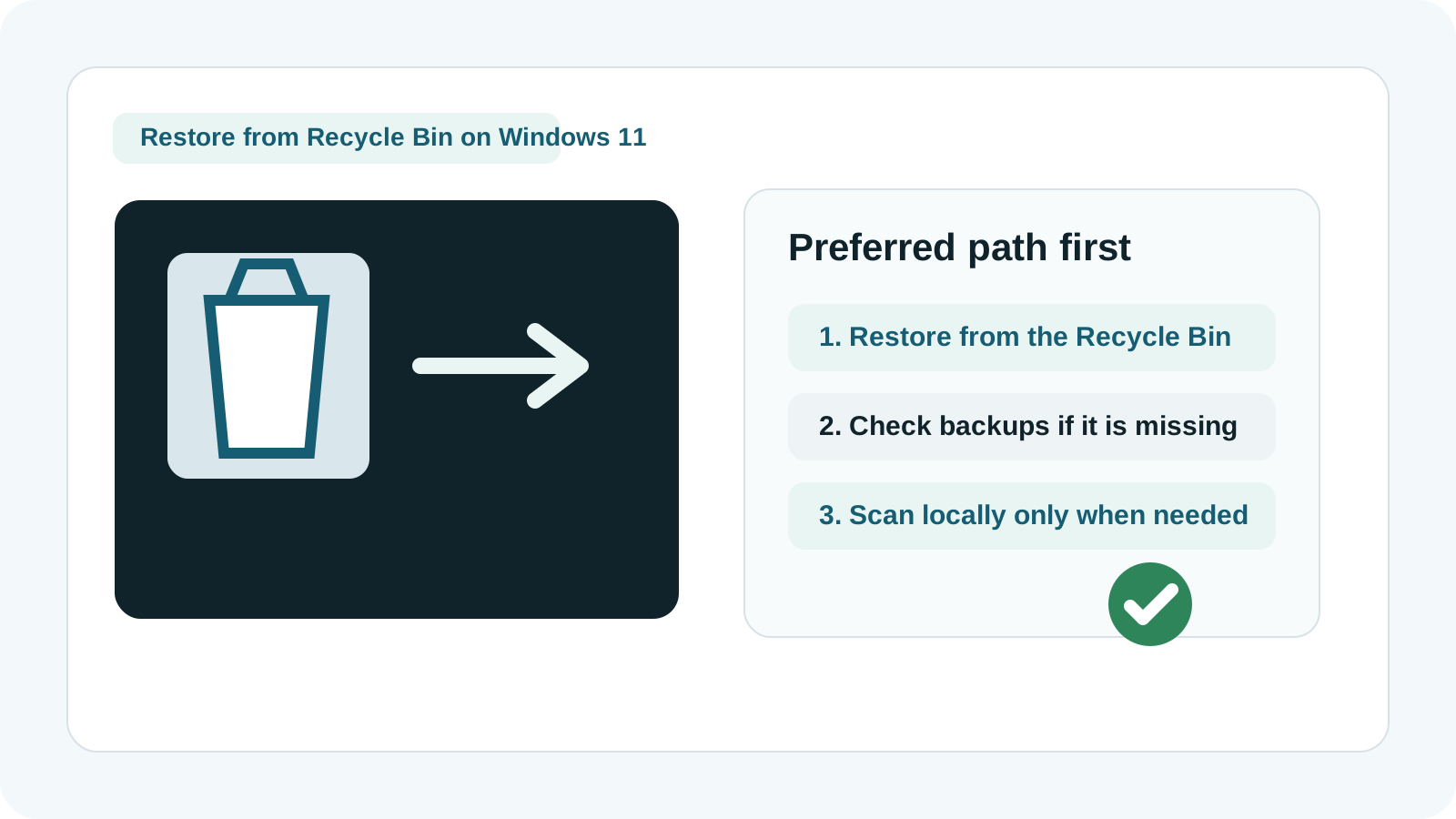
How to restore a file from the Recycle Bin in Windows 11
1. Open the Recycle Bin
Double-click the Recycle Bin on the desktop or search for it from Start.
2. Find the file or folder
Sort by original location, date deleted, or use the search box if the bin contains many items.
3. Right-click and choose Restore
Windows returns the item to its original folder if that location is still available.
4. Verify the file opens correctly
Open the restored file to confirm it is the one you needed.
What if the file is not in the Recycle Bin?
The bin was emptied
Check backups, cloud recycle bins, or previous versions first.
Shift Delete was used
The file may have skipped the Recycle Bin and may require a local scan.
The file was on removable media
USB drives and memory cards may not use the normal Recycle Bin path.
Storage settings changed
Some deletion settings or cleanup tools can remove files without a long Recycle Bin stay.
What to do if recovery software becomes necessary
- Stop writing new data to the source drive.
- Do not install the software on the affected drive when possible.
- Preview results before recovery if the tool supports it.
- Recover to another physical drive, not the source disk.
- If the device is physically damaged, stop and use a specialist.
Where Recovery Studio fits
Recovery Studio is useful after the Recycle Bin path is no longer available and you need a local Windows scan for deleted or lost files.
It is not a replacement for a simple Recycle Bin restore when the file is still there. The safest path is always the least destructive one that works.
FAQ
Will restoring from the Recycle Bin keep the original file name?
Usually yes, because Windows is restoring the file through its normal metadata path rather than reconstructing it from a deep scan.
What if I already emptied the Recycle Bin?
Check backups and cloud copies first, then consider a local recovery scan while minimizing new writes to the source drive.
Do USB drives use the Recycle Bin the same way?
Not always. Some removable media deletion workflows bypass the normal Recycle Bin behavior.
Should I recover files back to the same drive?
No. Save recovery output to another physical drive to avoid overwriting remaining deleted data.
Related guides
What to do after emptying the Recycle Bin
Use this when the normal restore option is no longer available.
Recover permanently deleted files on Windows
See the next-step workflow for files that skipped the Recycle Bin.
Download Recovery Studio
Run a local Windows scan when built-in restore options are gone.