
What to Do After Emptying the Recycle Bin by Mistake
Emptying the Recycle Bin can feel final, but it does not always erase file content right away. If you act carefully, there may still be a recovery path. The important part is avoiding more writes to the same drive while you check safer restore options first.
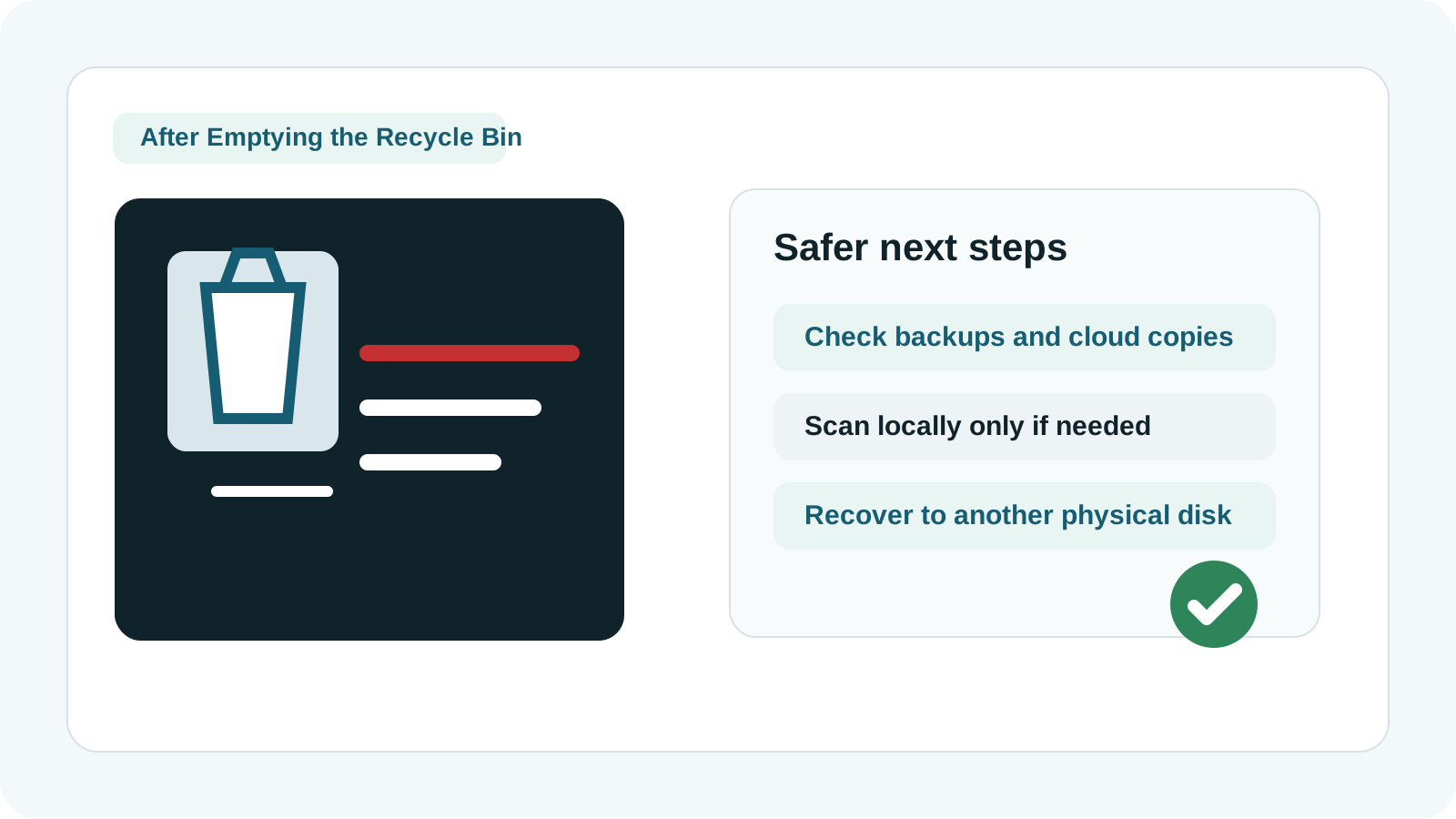
What to do first after emptying the Recycle Bin
- Stop using the drive where the deleted files originally lived.
- Prepare another physical disk for recovered files.
- If the files were on the system drive, keep Windows activity as light as possible.
- If the device clicks, disconnects, or was dropped, stop DIY recovery.
Check these restore sources before scanning
OneDrive and cloud recycle bins
Many Windows folders sync to the cloud. Check deleted items and version history there first.
File History and Previous Versions
If a backup exists, restoring it is more predictable than scanning free space.
App autosaves
Office, design, note, and editing apps may still have recent versions or temp files.
Shared folders and other devices
A previous copy might still exist on another PC, external drive, or collaboration service.
Why recovery can still work after the Recycle Bin is emptied
Windows often removes references before the actual storage blocks are reused. Until those blocks are overwritten, recovery software may still be able to find file content.
That does not mean every file will be recoverable. Metadata may be incomplete, names may be missing, and overwritten files may be gone.
How to recover with Recovery Studio
1. Use a safe installation path
Install and run the tool from another drive whenever possible.
2. Scan the original source location
Choose the drive or partition where the deleted file existed before it went to the Recycle Bin.
3. Filter by type and preview
Use file type, size, or preview availability to focus on the most useful results first.
4. Recover to another physical disk
Save recovered files to a different SSD, HDD, or removable drive.
Common mistakes after emptying the Recycle Bin
- Installing the recovery app on the affected drive.
- Continuing to use the PC heavily while deciding what to do.
- Assuming generated filenames mean the files are unusable.
- Saving results back to the original disk.
FAQ
Is recovery guaranteed after emptying the Recycle Bin?
No. Results depend on overwrite, drive health, file system condition, and whether enough file content still remains.
Can I restore file names and folders exactly?
Not always. If metadata is damaged or missing, deep scan results may use generated names and may not preserve the original folder structure.
Should I run recovery on the system drive?
You can scan it, but you should minimize new writes and save recovered files to another physical drive.
When should I avoid DIY recovery?
Avoid it when the device shows physical damage signs such as clicking, repeated disconnects, impact, or water exposure.
Related guides
Recover deleted files on Windows
Review the broader recovery workflow across normal deletion scenarios.
Restore files from the Recycle Bin on Windows 11
See the simpler restore path when the files are still in the bin.
Download Recovery Studio
Run a local scan and export recovered files to another physical drive.