
How to Recover Files From a Formatted USB Drive Safely
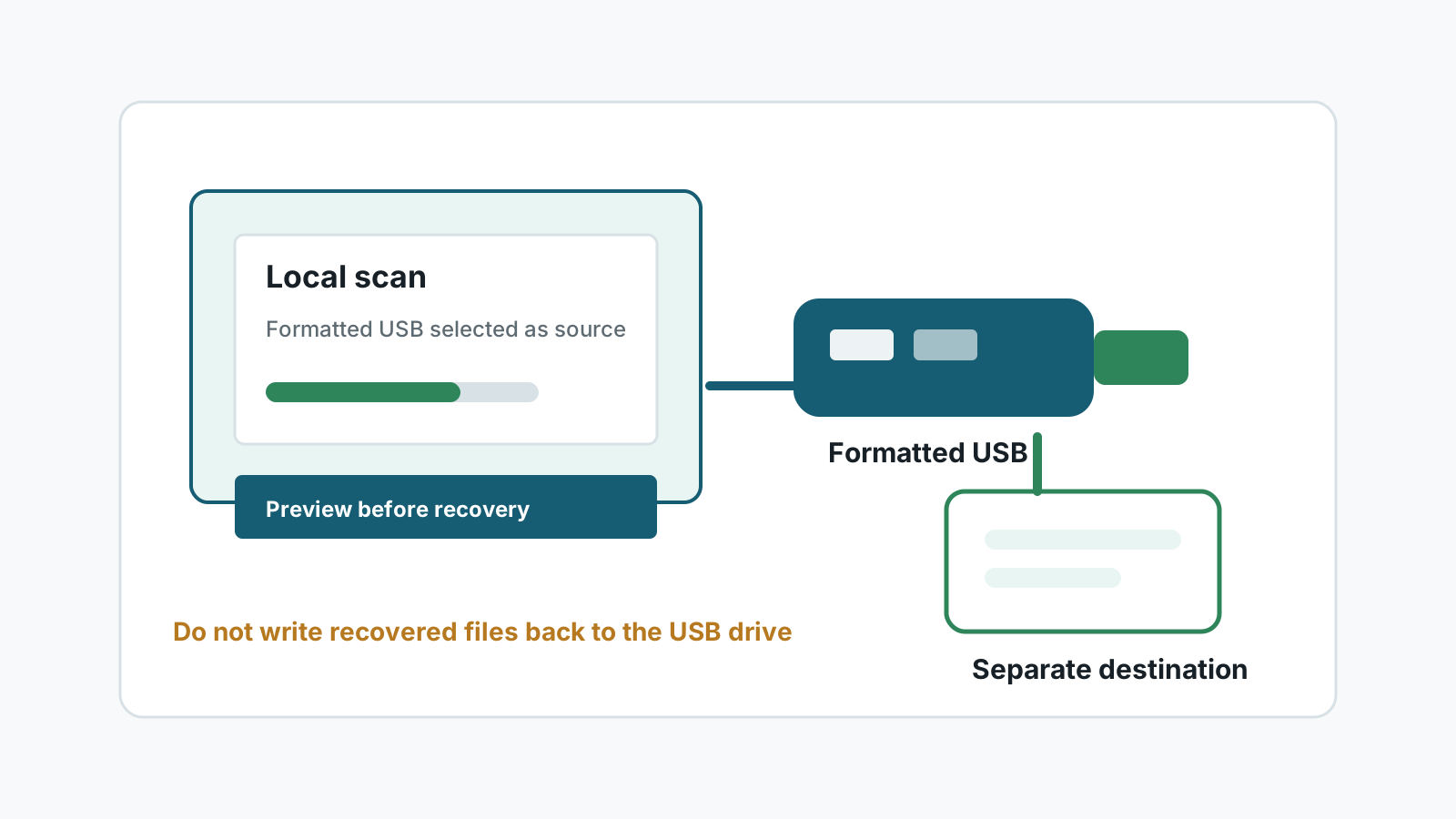
A formatted USB drive is not always the end of the story, especially if it was a quick format and you have not copied new files to it. The safest workflow is to stop using the USB drive, scan it locally, preview what can be opened, and save recovered files somewhere else.
Why a quick format may still leave recoverable data
A quick format usually rebuilds filesystem structures and marks space as reusable. It does not necessarily overwrite every old file immediately.
That remaining content is fragile. New photos, installers, downloaded files, or recovery output can reuse the same space and make recovery harder or impossible.
What to do before you scan the USB drive
- Unplug the USB drive if you are not ready to scan it yet.
- Do not format it again, run repair prompts, or copy test files to it.
- Install recovery software on your Windows PC or another drive, not on the USB drive.
- Prepare a separate destination drive with enough free space for recovered files.
A safer formatted USB recovery workflow
1. Connect the USB drive through a stable port
Avoid loose hubs and stop if the device repeatedly disconnects.
2. Select the USB drive as the source
Confirm the capacity and drive label so you do not scan or recover from the wrong device.
3. Run a deep scan for common file types
Formatted removable drives often need a deeper file-signature scan, especially after exFAT or FAT32 metadata was reset.
4. Preview and recover to another disk
Open supported files first, then save selected files to a different physical drive.
Limits to expect after USB formatting
- No tool can guarantee 100% recovery.
- Deep scan results may not keep original file names or folder structure.
- Files copied after the format may overwrite older files.
- Damaged or unstable USB flash drives are safer with a professional recovery service.
FAQ
Can a formatted USB drive be recovered?
Sometimes, especially after a quick format with little or no new data written afterward. Full overwrite or physical damage can prevent recovery.
Should I format the USB drive again if Windows asks?
No. Reformatting creates more changes on the source device and can reduce recovery chances.
Where should recovered files be saved?
Use another physical drive or internal disk, never the formatted USB drive being scanned.
Will the original folders come back?
Not always. If filesystem metadata is missing, a deep scan may recover files by type with generated names.