
What to Do Before Using Data Recovery Software
The minutes before you run data recovery software matter. A careful setup can preserve recoverable data, while installing tools or saving files to the wrong drive can reduce your chances.
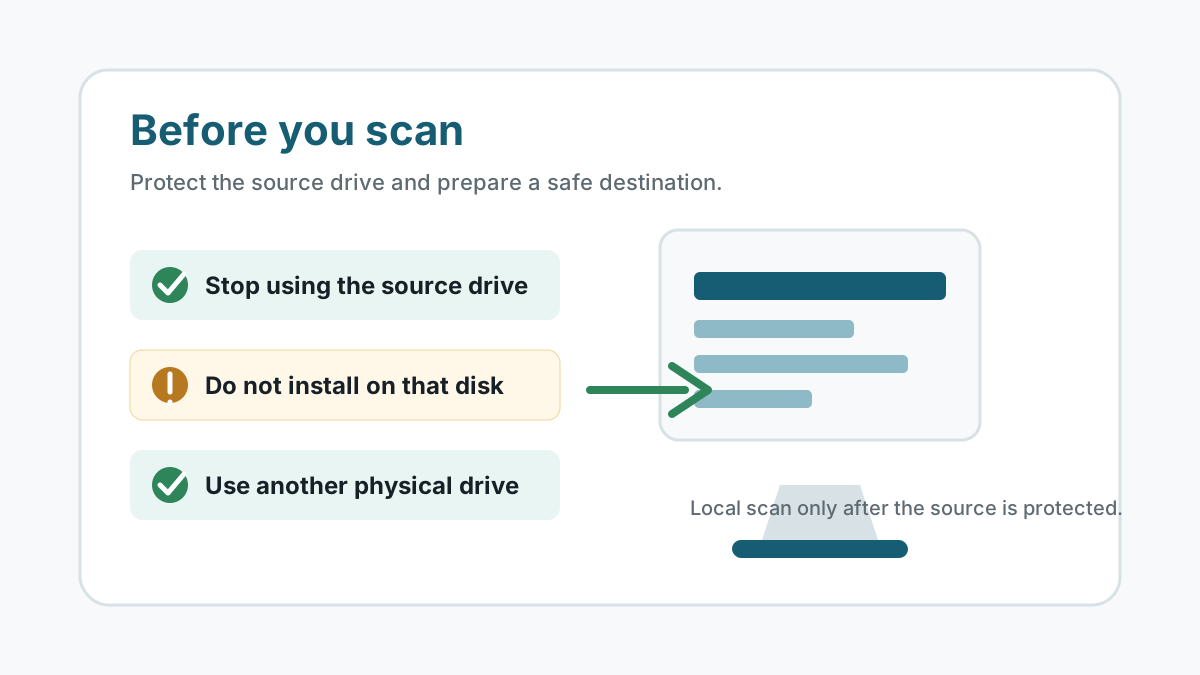
Pause activity on the affected drive
- Stop saving, downloading, editing, or moving files on the drive where data was lost.
- If the lost files were on C:, reduce browser use, app installs, Windows updates, and large downloads.
- For a USB drive, memory card, or external drive, disconnect it until you are ready to scan from a stable Windows PC.
- Do not run repair commands before you have copied or recovered important files.
Check safer restore sources first
Recycle Bin
If the file is still there, restoring it is usually safer than scanning.
File History or Previous Versions
A backup restore can preserve names, folders, and file integrity better than deep scan results.
OneDrive or app history
Cloud recycle bins, version history, autosaves, and recent-file caches may solve the problem without touching the source disk.
Other copies
Check email attachments, external drives, shared folders, and collaboration tools before recovery.
Prepare a safe recovery destination
Use another physical disk with enough free space for the recovered files. A different folder on the same source drive is not enough.
If the source is an external drive, recover to the computer's internal disk or another external disk. If the source is the system drive, use a separate external drive when possible.
Then run recovery software carefully
1. Install away from the source
Install or run the tool from a drive that did not lose the files.
2. Select the correct source
Choose the disk, partition, USB drive, external drive, or memory card where the files originally lived.
3. Preview before export
Preview supported photos, PDFs, text files, and documents before writing recovery output.
4. Save elsewhere
Recover selected files to the prepared destination disk, then verify them there.
Safety and next steps FAQ
Should I install data recovery software before checking backups?
Check Recycle Bin, File History, cloud recycle bins, and app version history first when available. Those paths usually create less risk for the source drive.
Can I recover files to a new folder on the same drive?
No. Recovery output should go to another physical disk because same-drive writes can overwrite data that has not been recovered yet.
What if the drive is making noise or disconnecting?
Stop DIY recovery. Physical symptoms should be handled by a professional recovery provider.