
Why Recovered Files Should Be Saved to Another Drive
Saving recovered files to another physical drive is one of the most important safety rules in data recovery. The source drive may still contain recoverable data, and every new output file can overwrite part of it.
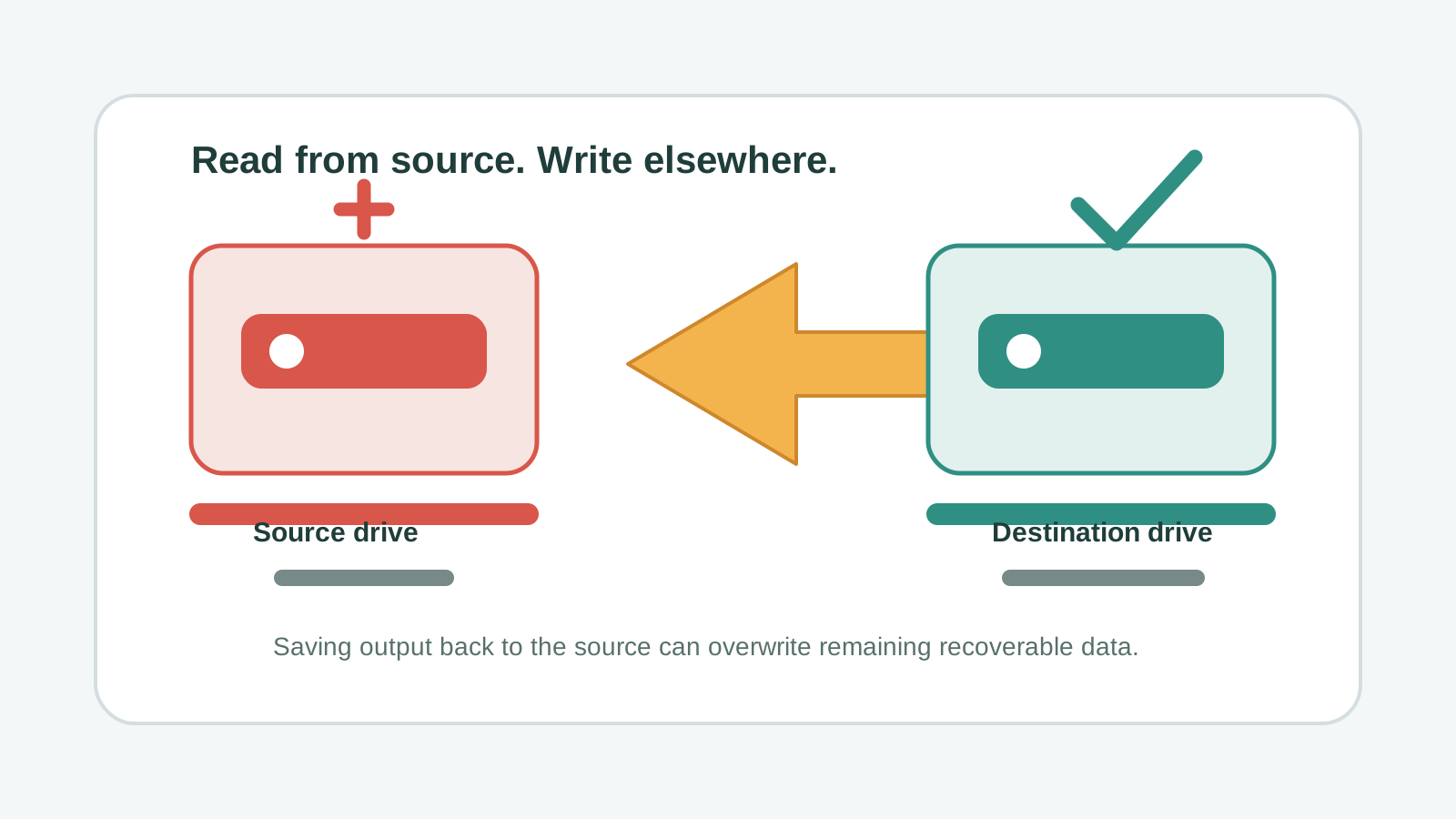
Why the destination drive matters
Deleted and lost files often remain on storage until their space is reused. If you recover files back to that same disk, the recovered output itself may reuse space that still contains other lost files.
This risk is especially serious on USB drives, external drives, SD cards, and system drives with limited free space.
Source drive versus destination drive
Source drive
The original storage device where data was deleted, formatted, corrupted, or became inaccessible. Read from it as little as possible.
Destination drive
A different physical disk where recovered files are exported. It should have enough free space for the selected results.
Same partition is not enough
Saving to another folder or partition on the same physical disk may still write to the same device.
Network or cloud destinations
These can be useful after recovery, but keep the initial export simple and stable when possible.
How to choose a safer destination
- Use a separate external SSD, external hard drive, or another internal physical disk.
- Make sure the destination has more free space than the files you plan to recover.
- Do not use the affected USB drive, SD card, or external drive as the destination.
- For system-drive recovery, avoid exporting to C: when the lost files were on C:.
A safer export workflow in Recovery Studio
1. Select the original source
Scan the disk, partition, removable drive, or memory card where the files were lost.
2. Preview and narrow results
Recover the most important files first instead of writing a huge unnecessary export.
3. Pick another physical drive
Choose a destination that is not the source drive and has stable free space.
4. Open files from the destination
Verify recovered files after export, then decide whether to copy them back later.
Safe destination FAQ
Can I recover files to a different folder on the same drive?
Avoid it. A different folder can still write to the same physical storage that contains unrecovered data.
Is another partition safe?
Only if it is on another physical disk. A different partition on the same disk still creates writes on the source device.
Can I recover to a USB drive?
Yes, if that USB drive is not the source device and has enough free space for the selected files.
Why not recover everything at once?
A large export takes time and writes a lot of data. Preview and prioritize important files first when the source drive may be unstable.