
Should I Run CHKDSK Before Data Recovery?
CHKDSK can be useful for fixing certain Windows file system errors, but it is not a data recovery tool. If important files are missing or the drive is unstable, running CHKDSK first can change the file system before you have copied the data you need.
Short answer
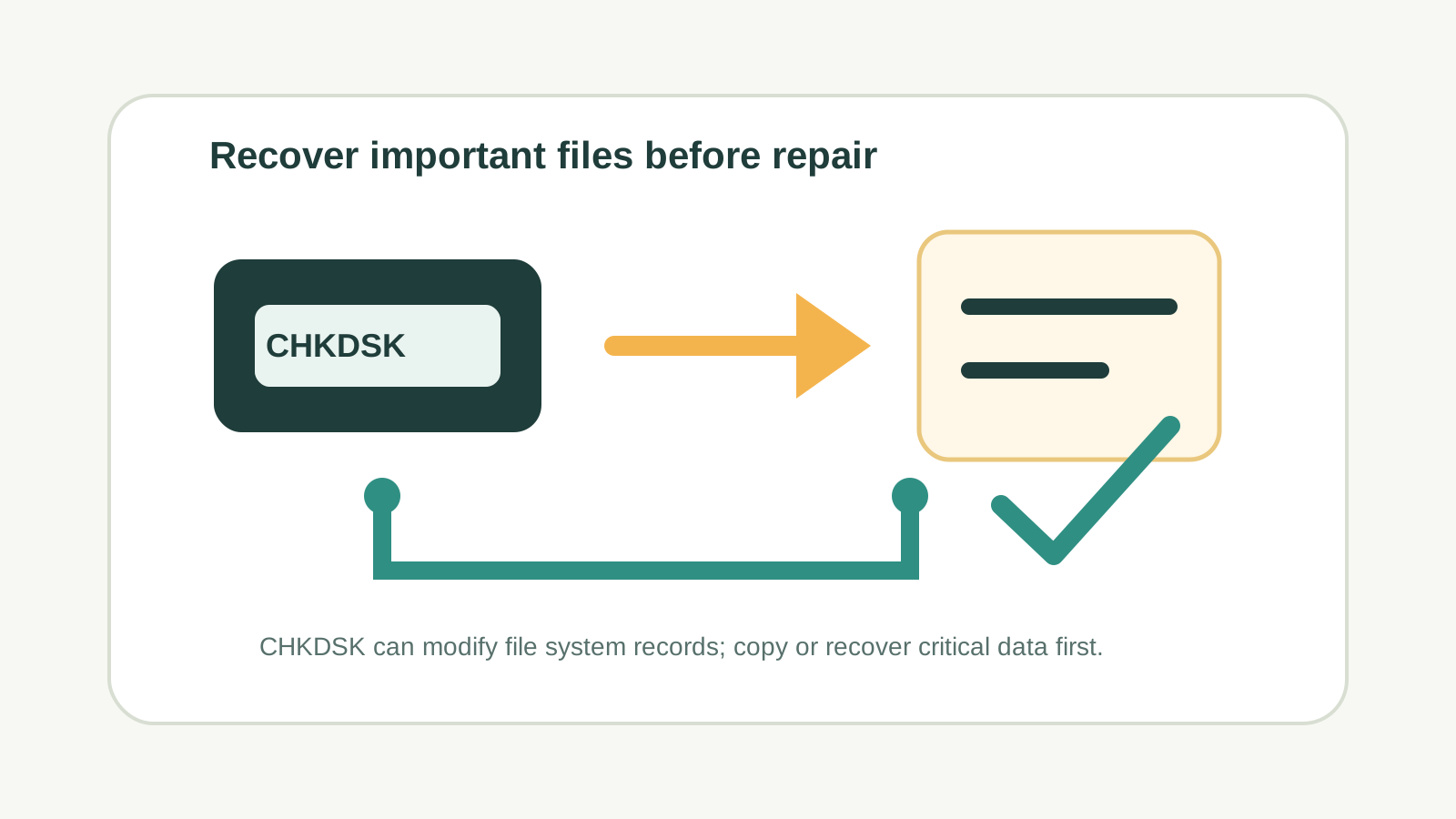
If the files are important, do not rush into CHKDSK. First stop using the source drive, check backups and restore paths, and consider copying or recovering important files to another physical disk.
CHKDSK may help with some file system issues, but it can also modify indexes, directory records, and allocation information. Those changes may affect what recovery software can later reconstruct.
When not to run CHKDSK first
- Files are missing and you have not copied or recovered them yet.
- The drive clicks, disconnects, overheats, or shows physical failure signs.
- Windows asks to format a drive that contains important data.
- The device is an SD card, USB drive, or external disk with one-of-a-kind files.
- You do not have another physical drive ready for recovered output.
A safer order of operations
1. Stop writing to the source
Do not add files, install software, or accept repair prompts on the affected device.
2. Check backup and cloud copies
Use File History, Previous Versions, OneDrive, app autosaves, and other backups first.
3. Copy or recover important files
If the device is stable, scan locally and recover selected files to another physical disk.
4. Repair only after data is safe
Run CHKDSK or other repair tools only after important files have been copied or recovered.
What if CHKDSK already ran?
Do not panic. Stop using the drive, look for any moved or renamed results such as found folders or CHK files, and scan the source only if it is stable enough to read.
Recovered file names and folder structure may be less predictable after repairs. Focus on file type, size, preview, and content checks.
When CHKDSK may be reasonable
CHKDSK is more reasonable after critical data has been copied elsewhere, or when the drive contains no important missing files and you are trying to repair a non-critical file system issue.
Even then, keep a backup first. A repair command should not be treated as a substitute for recovery or backup.
CHKDSK before recovery FAQ
Is CHKDSK a data recovery tool?
No. It is a file system checking and repair tool. It may move or change records while trying to make the file system consistent.
Can CHKDSK delete files?
It can change file system records and may place fragments in found folders. The practical result can feel like data disappeared, especially when important files were not copied first.
Should I run CHKDSK on a clicking drive?
No. Clicking, overheating, repeated disconnects, water damage, or impact damage call for specialist handling.
What should I do before CHKDSK?
Stop using the source, prepare another physical disk, copy or recover important files if possible, and only repair after the data is safe.
Related drive safety guides
Can recovery software make data loss worse?
Understand risky writes, repairs, and repeated scans.
Recovery Safety Guide
Review source-drive, overwrite, and safe export rules before scanning.
Recover deleted files on Windows
Follow a practical Windows recovery workflow after deletion.
Download Recovery Studio
Run a local scan and recover selected files to another physical drive.