
How to Recover Files From the Windows System Drive Safely
The Windows system drive is risky because Windows, browsers, updates, and apps write to it constantly. If files were lost from C:, reduce activity immediately and recover to a different physical disk.
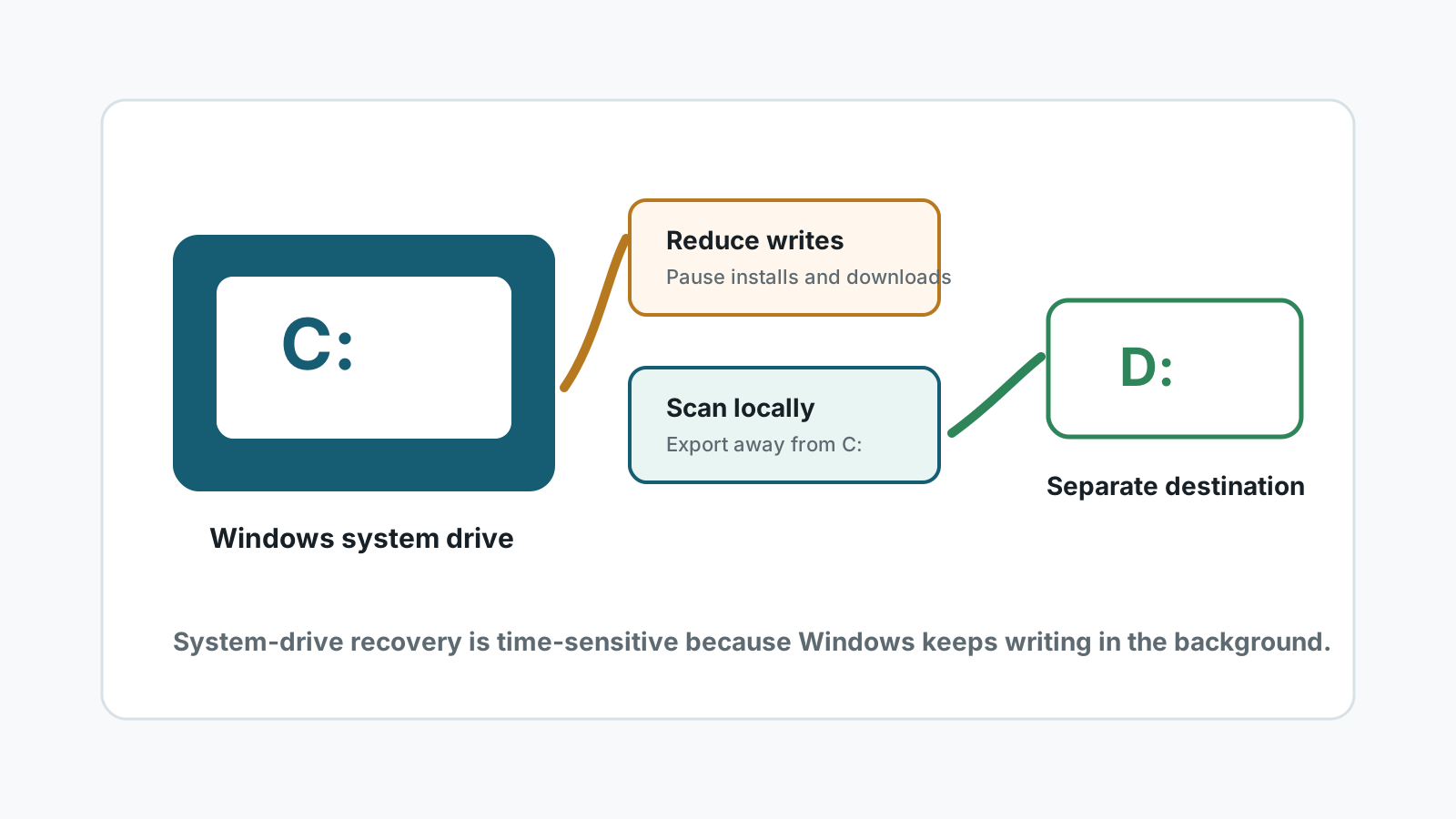
Why C: drive recovery is more delicate
When files are deleted from the Windows system drive, the same drive keeps receiving browser cache, Windows updates, temp files, app logs, and installer writes.
Those background writes can overwrite deleted file content. The safest path is to stop nonessential activity, check restore sources, and save recovery output somewhere else.
What to check before installing anything
Recycle Bin
Restore from the bin if possible. It is safer than scanning and preserves paths.
Windows.old and user folders
After upgrades or reinstalls, check Windows.old and the old user profile before scanning.
File History or Previous Versions
Use available backups first because they avoid more writes to C:.
OneDrive or app history
Cloud sync, Office version history, and editor autosaves may have safer copies.
A safer system-drive recovery workflow
1. Stop avoidable activity
Pause downloads, installs, game updates, cleanup tools, and large file copies.
2. Use another physical disk
Install recovery software elsewhere when possible and prepare a separate output disk.
3. Scan the affected partition
Choose the system partition that originally held the lost files and review results carefully.
4. Export away from C:
Recover selected files to another physical disk, then verify them before resuming normal use.
System-drive limits
- Background Windows writes can reduce recovery chances quickly.
- SSD system drives may also be affected by TRIM.
- Deep scan results may lose names and original folder structure.
- If Windows is unstable or the drive is physically failing, stop and consider professional help.
System drive recovery FAQ
Should I install recovery software on C:?
Avoid it if the lost files were on C:. Installing software can write over recoverable data.
Can I keep using the PC while scanning?
Keep use minimal. The more the system writes to C:, the higher the overwrite risk.
What if the PC uses an SSD?
Set expectations lower because TRIM can make deleted SSD data unavailable to recovery software.
Where should I recover files from C:?
Use another physical drive, such as an external SSD or a different internal disk.
Related recovery guides
Deleted files from SSD
Understand the TRIM limit before scanning a solid-state system drive.
Recover deleted files on Windows
Use the full deleted-file recovery workflow before deeper scanning.
Recovery Safety Guide
Review overwrite, physical damage, and separate-destination rules.
Download Recovery Studio for Windows
Run a local scan and recover files to another physical drive.