
How to Recover Files From an Inaccessible Drive
An inaccessible drive can come from permissions, encryption, file system damage, connection trouble, or failing hardware. The safe order is to protect data first, then repair the drive after recovery.
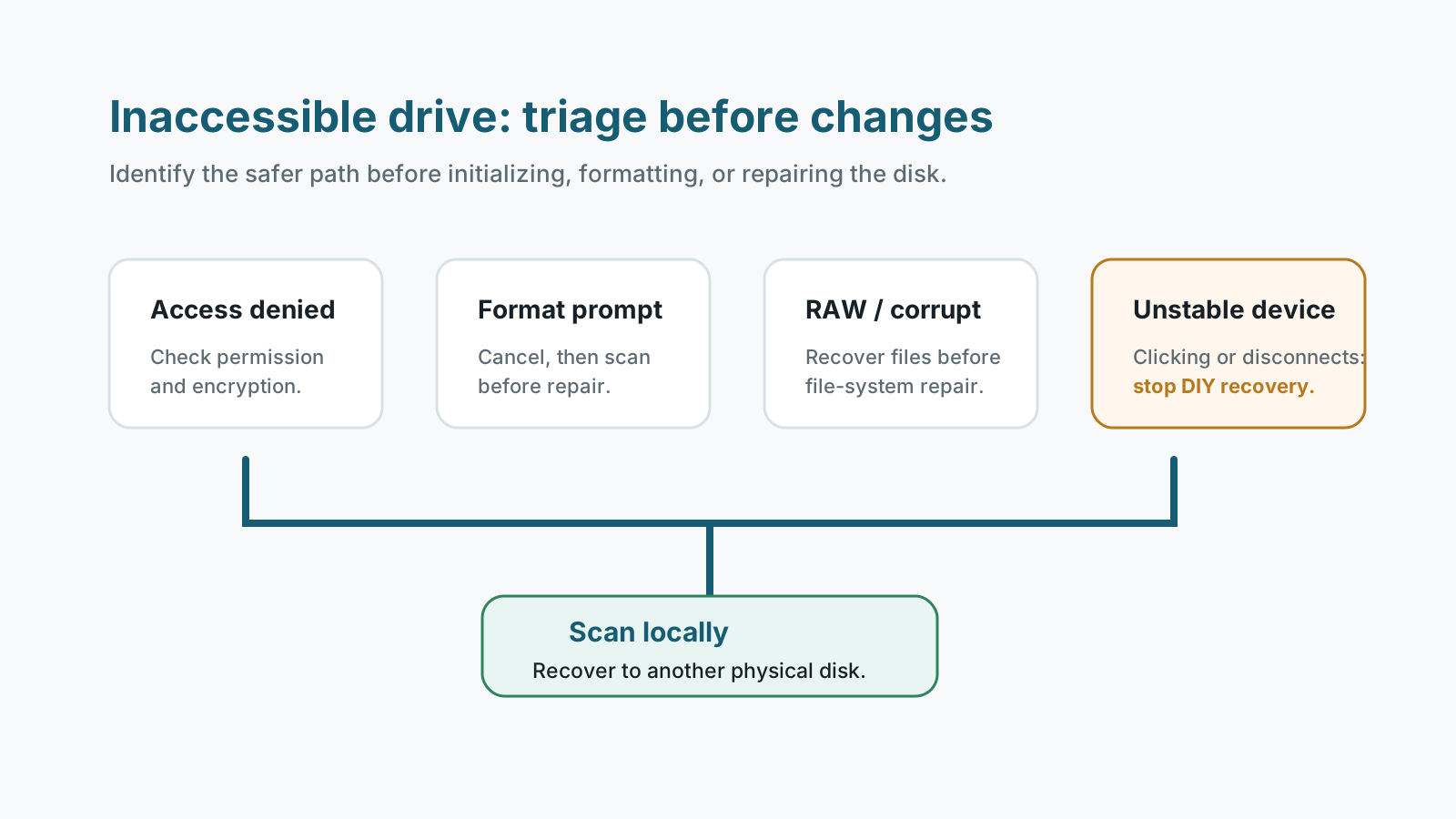
Triage the error before changing the drive
Access denied
Permissions, ownership, or encryption may be involved. Do not reset everything before confirming the cause.
Needs formatting
Cancel the prompt and recover files before formatting.
RAW or unreadable
Metadata may be damaged, so scan or image the drive before repair.
Not detected reliably
Unstable detection points to cable, enclosure, reader, or hardware trouble.
Low-risk checks that do not write to the drive
- Try a different cable, port, enclosure, reader, or PC.
- Check Disk Management to see whether Windows detects capacity and partitions.
- Confirm BitLocker or another encryption tool is not blocking access.
- Avoid initializing, formatting, partitioning, or running repair commands before recovery.
How to scan an inaccessible drive
1. Keep the source drive unchanged
Do not create new folders, copy files to it, or accept format prompts.
2. Install recovery software elsewhere
Run the app from your system drive or another disk, not the affected removable drive.
3. Scan the affected device
Select the inaccessible drive or partition and let the scan build a recoverable result list.
4. Export to a separate destination
Recover selected files to another physical disk and verify them there.
When software is the wrong next step
If the drive is physically unstable, contains irreplaceable data, or shows worsening read behavior, a professional recovery provider may be safer than repeated scans.
Drive error recovery FAQ
Should I take ownership of the drive first?
Only if you are confident it is a permission issue. If the drive also shows corruption or hardware symptoms, recover files first.
Can an inaccessible drive be recovered without formatting?
Often you can attempt a scan before formatting. Formatting should come after recovery, not before.
What if Disk Management asks me to initialize the disk?
Do not initialize the disk if it contains needed files. Initialization writes new metadata.
Can deep scan preserve folders?
Not always. If file system metadata is damaged, deep scan may recover files by type with generated names.
Related recovery guides
Recovery Safety Guide
Review source-drive, overwrite, and damaged-device precautions.
Should you run CHKDSK before recovery?
Understand why repair commands can change the file system before recovery.
What affects recovery chances
See how overwrite, device health, metadata, and storage type change outcomes.