
Can You Recover Files After a Move or Cut-Paste Operation Failed?
A failed move is confusing because the file may have been removed from the source, partially copied to the destination, or left in a temporary state. Treat both locations carefully until you know what happened.
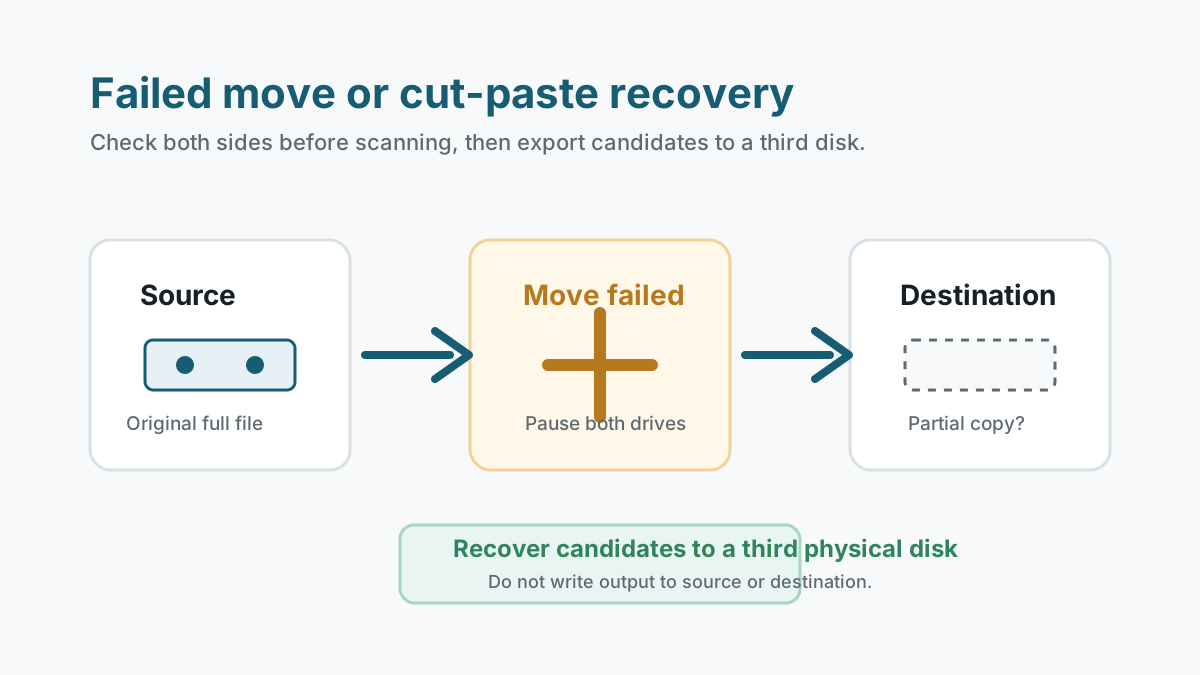
Pause activity on both locations
- Stop using the original source drive and the destination drive if possible.
- Do not retry the move repeatedly until you have checked both sides.
- Do not save recovered files to either affected location.
- Use another physical disk as the recovery destination.
Check source, destination, and history
Original folder
Look for the file or a partial copy where the move started.
Destination folder
Sort by modified date and size to find completed or incomplete copies.
Recycle Bin
Some failed operations may leave recoverable entries there, especially on internal drives.
Backup and sync history
Check OneDrive, File History, Previous Versions, and app-specific recent files.
How to scan after a failed move
If the file is missing from both locations and no backup exists, scan the original source first because cut-paste usually removes the source entry after copying.
If the move failed while writing to another drive, also inspect the destination for partial files, but do not run repairs before important data is safe.
1. Pick the most likely source
Start with the drive where the complete file originally existed.
2. Search and filter results
Use file type, approximate size, and date clues rather than relying only on the original name.
3. Export to a third location
Recover candidates to another physical disk and compare them with any partial destination copies.
Limits to expect
- If the file was overwritten during the move, software recovery may not restore it.
- Deep scan may find a file by type but lose the original name or folder.
- Interrupted large files may be incomplete even if a candidate is found.
- Unstable external drives should be handled conservatively or by a specialist.
Accidental file loss FAQ
Should I scan the source or destination first?
Start with the original source unless you have clear evidence that the destination received the complete file.
Can I continue copying files while I recover?
No. New writes to either affected drive can overwrite recoverable data.
Will the original filename remain?
Not always. If metadata was lost, deep scan results may use generated names.