
What to Do Immediately After Losing Files
The first few minutes after data loss matter because new writes can overwrite deleted or lost file content. Before you install tools, run repairs, or copy more files, pause and protect the original storage device.
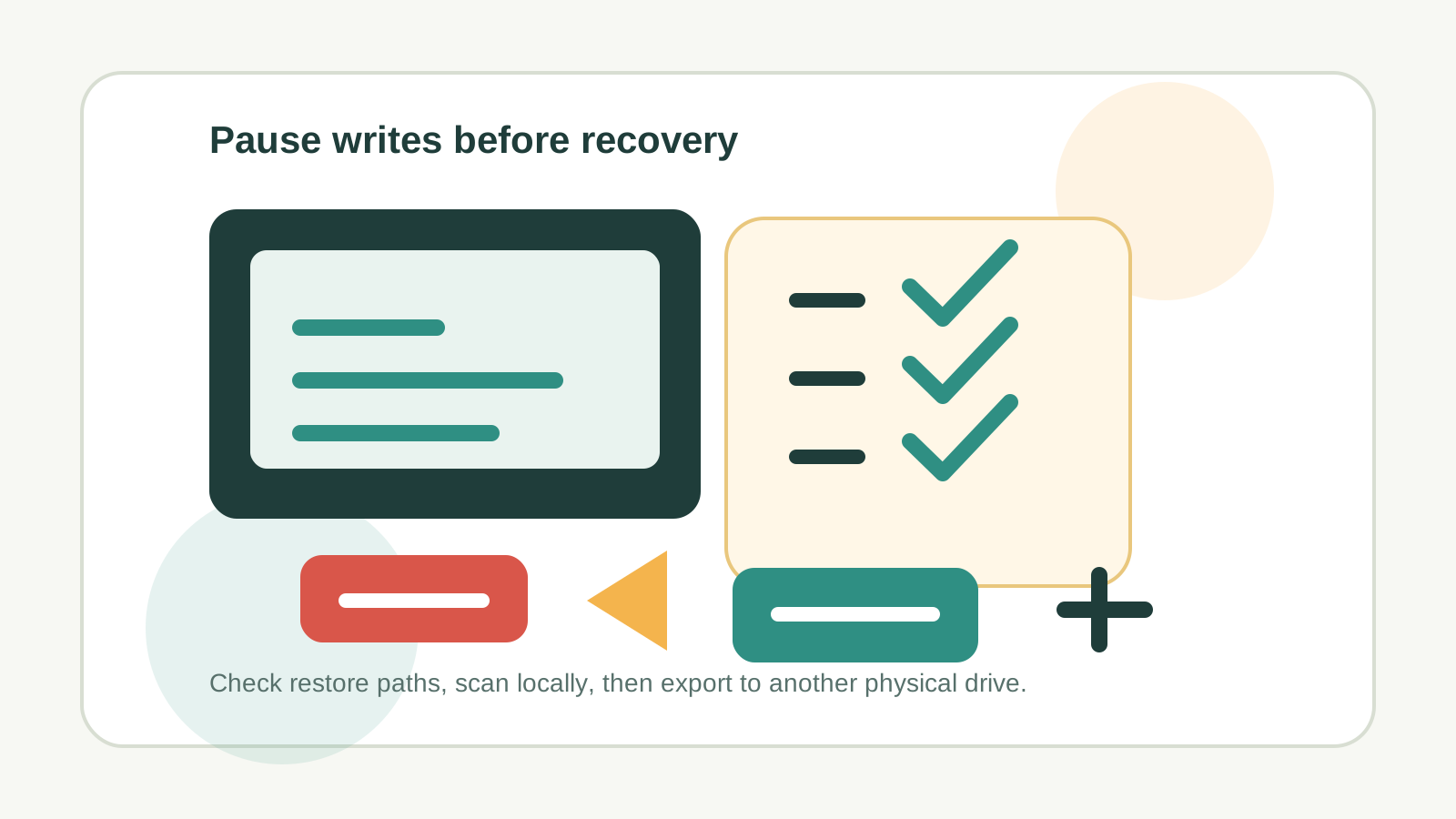
The first five actions to take
- Stop using the drive, USB device, memory card, or external disk where the files were lost.
- Do not install software, download files, run cleanup tools, or save recovery output to that same source drive.
- If the loss happened on the Windows system drive, reduce browser use, app installs, and large downloads.
- Prepare another physical drive before any recovery export.
- Stop immediately if the device shows physical failure symptoms such as clicking, overheating, water damage, or repeated disconnects.
Check safer restore paths before scanning
Recycle Bin and undo
If the files are still in the Recycle Bin or the app supports undo, use that before deeper recovery.
File History and Previous Versions
Windows backups can preserve names and folders better than a deep scan.
Cloud sync and app history
OneDrive, Office, editors, and collaboration tools may have recycle bins, versions, or autosaves.
External copies
Check USB drives, old exports, email attachments, and shared folders before scanning the source disk.
When a local recovery scan makes sense
A local Windows recovery scan makes sense when built-in restore paths do not have the files and the source device is stable enough to read. Recovery Studio is designed to scan locally on your PC; the goal is to inspect recoverable candidates without uploading user files.
Results are not guaranteed. Overwrite, SSD TRIM, damaged filesystem metadata, fragmented large files, and hardware problems can all reduce recovery chances.
A safer workflow after the first triage
1. Install away from the source
Install recovery software on a different physical disk or a safe system location that is not the affected storage device.
2. Select the original source
Choose the disk, partition, USB drive, external drive, SD card, or memory card where the lost files originally lived.
3. Preview before export
Preview supported files and prioritize the most important results instead of exporting everything blindly.
4. Recover to another physical drive
Use a separate destination so recovery output does not overwrite data that may still be recoverable.
Mistakes that can make recovery harder
- Formatting a drive before copying important files elsewhere.
- Running repair commands on a drive that may have failing hardware.
- Saving recovered files back to the source device.
- Assuming a deep scan will preserve original names and folders.
Immediate data-loss FAQ
What is the very first thing I should do after losing files?
Stop using the source drive. New writes are the main avoidable risk because they can overwrite deleted or lost file content.
Should I install recovery software right away?
Only if you can install it away from the affected storage. Do not install onto the drive that lost the files.
Can Recovery Studio guarantee recovery?
No. It can scan locally and help you preview and export candidates, but overwrite, device health, filesystem damage, and file type determine the result.
When should I contact a specialist?
Use a specialist for clicking drives, water or impact damage, repeated disconnects, burnt smell, or irreplaceable business data on unstable hardware.