
Quick Scan vs Deep Scan in Data Recovery: Which Should You Use?
Quick scan and deep scan answer different questions. Quick scan is usually best when the file system still has useful records. Deep scan is for harder cases where the content may remain but metadata is missing.
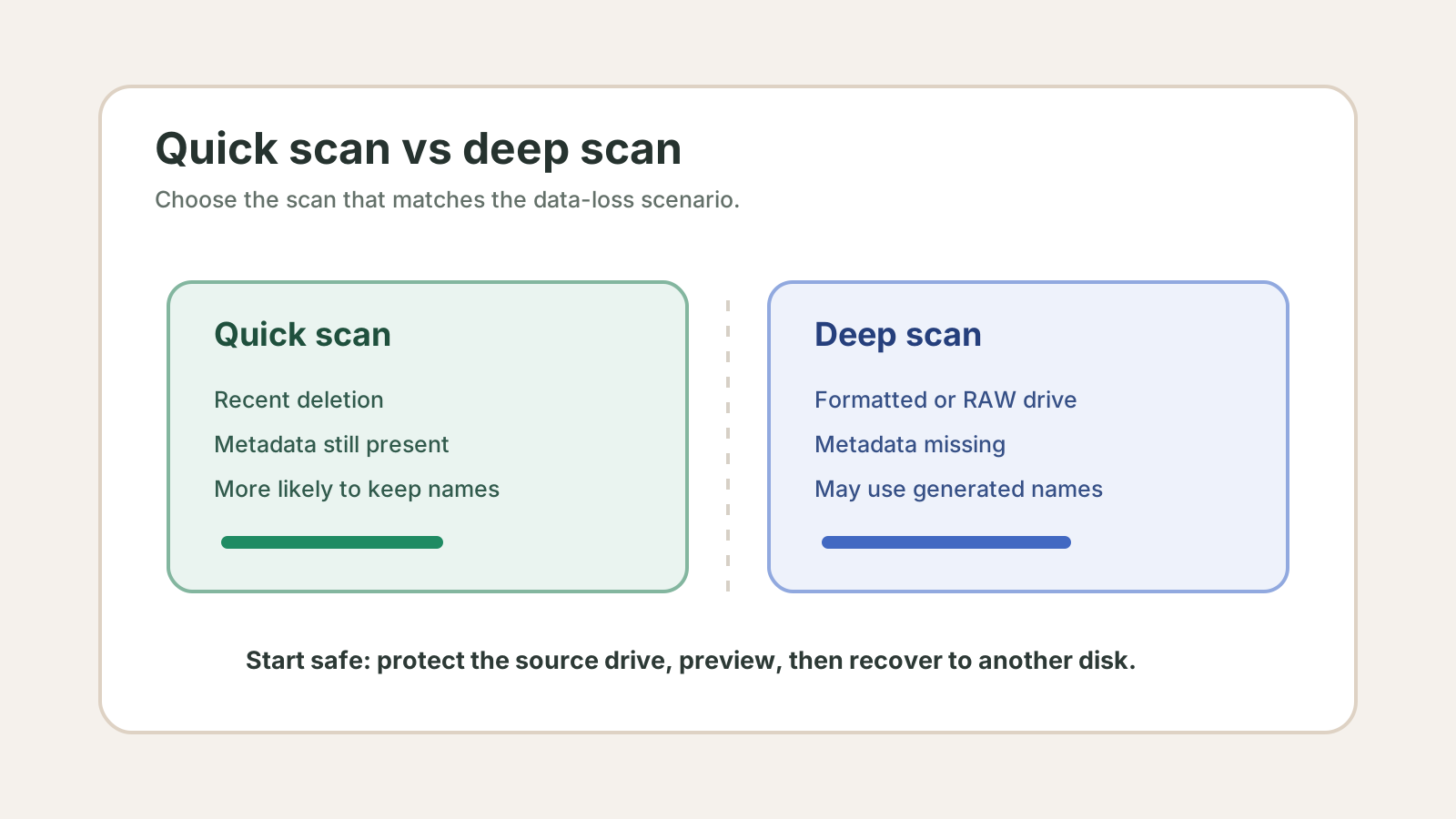
Quick scan vs deep scan at a glance
Quick scan
Faster and more likely to preserve names when deleted records or file system metadata remain.
Deep scan
Slower and broader; useful after formatting, RAW drives, or missing metadata, but names may be generated.
Best first step
Check Recycle Bin, backups, cloud versions, and previous versions before scanning.
Best export rule
Never save recovered files back to the source physical disk.
Use quick scan when
- Files were deleted recently and the drive has not been heavily used.
- The volume still mounts normally in Windows.
- You care about original names and folders and metadata may still exist.
- You want a faster first pass before a longer deep scan.
Use deep scan when
- The drive was quick-formatted or became RAW.
- A quick scan did not find the files you need.
- Folder structure is damaged or missing.
- You are looking for common file types by content, such as photos, PDFs, ZIP files, or documents.
A practical decision path
1. Protect the source
Stop writes and prepare another physical disk before recovery.
2. Try safer restores
Use Recycle Bin, File History, Previous Versions, and cloud recycle bins first.
3. Run a focused first pass
Use quick scan for recent deletion or deep scan for formatted, RAW, or missing-metadata cases.
4. Preview, filter, export
Recover only useful results to another disk and verify the copies there.
Deep scan result FAQ
Should I always run deep scan first?
No. For recent deletion on a healthy volume, quick scan may preserve more useful metadata and take less time.
Can I run both scan types?
Yes, if the device is healthy. Do not run repeated scans on a clicking, overheating, or disconnecting drive.
Which scan keeps original filenames?
A metadata-based quick scan is more likely to keep names. Deep scan may use generated names when metadata is gone.