
Why Preview Recoverable Files Before Recovery?
A recovery result list can include useful files, duplicates, partial files, and old cached content. Preview helps you focus on the files worth exporting before you copy large batches.
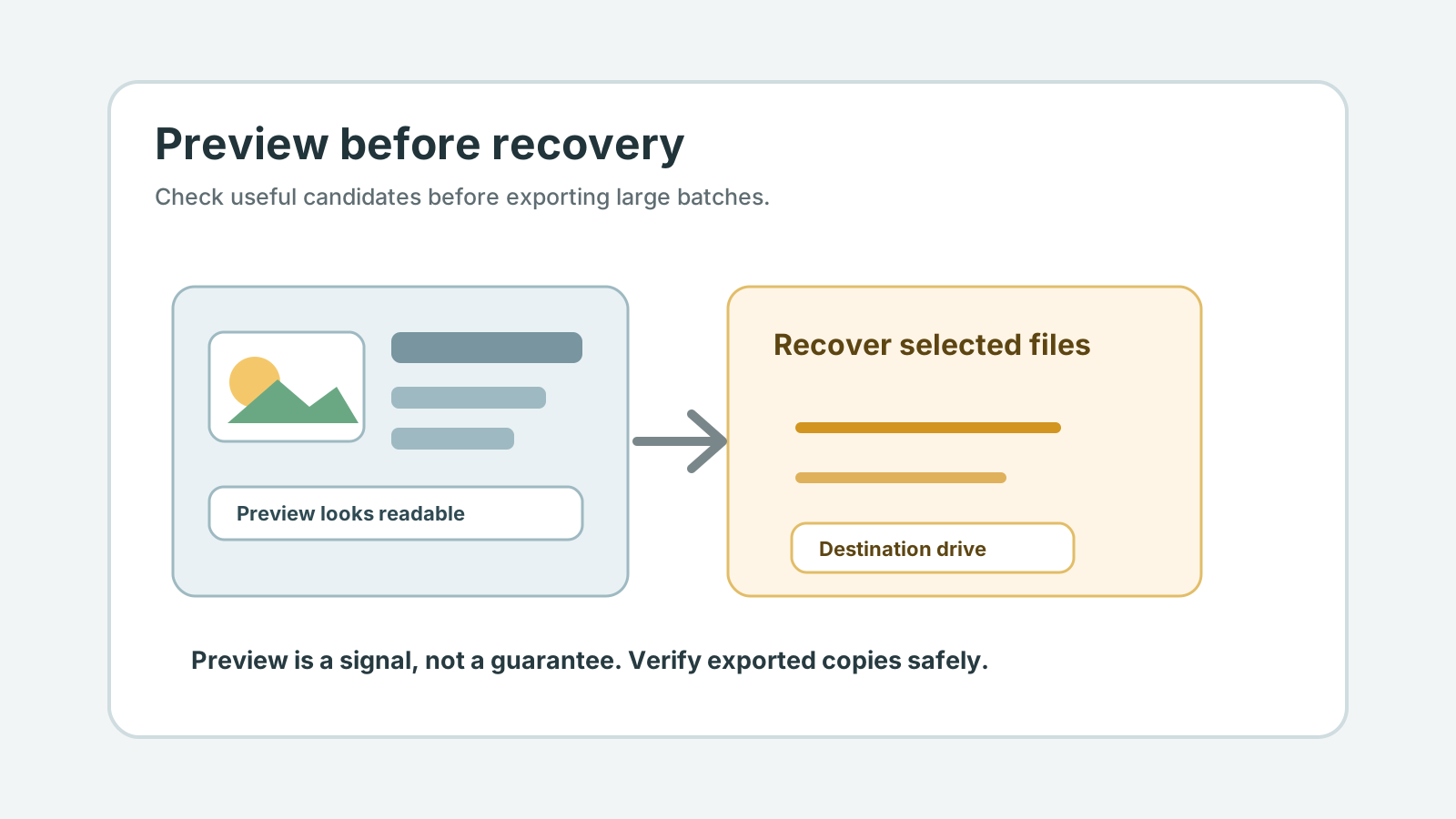
Why preview matters
Confirm the right file
A preview can show whether the photo, PDF, text file, or document candidate is actually useful.
Reduce junk export
Deep scans may find duplicates, thumbnails, cache files, and partial content.
Prioritize important files
Preview lets you recover the highest-value results first when destination space or time is limited.
Spot possible corruption
A failed preview is not always final proof, but it is a warning to verify carefully after export.
What preview can and cannot show
Preview is strongest for supported photos, PDFs, and text-like files. It can help identify the right result before you export.
Preview is not a guarantee that every file will open perfectly in its original app. Large videos, archives, and complex documents may still need full validation after recovery.
A safer preview workflow
1. Filter by file type
Start with the file categories that matter most: photos, documents, archives, or videos.
2. Check size and likely date
Avoid exporting tiny placeholder files when a larger likely candidate exists.
3. Preview supported files
Open candidates in the preview pane before adding them to the recovery list.
4. Export selected results
Recover selected files to another physical drive, then open the exported copies to verify.
Preview limits to remember
- Unsupported file types may still need export and validation.
- A preview of an embedded thumbnail does not prove a whole large file is intact.
- A corrupt file may require a clean source copy or specialist help, not repeated source-drive writes.
Deep scan result FAQ
Does preview guarantee recovery?
No. It is a useful signal, especially for supported file types, but recovered copies should still be verified from the destination disk.
Should I export everything if preview works?
Not necessarily. Export the files you need most first, and always use another physical disk.
What if preview is not available?
Use file type, size, likely date, and folder clues if available, then verify exported copies from the safe destination.