
How to Preview Files Before Recovering Them
Previewing files before recovery helps you avoid exporting the wrong results. It is especially useful when deleted-file names are missing, duplicated, or generated by a deep scan.
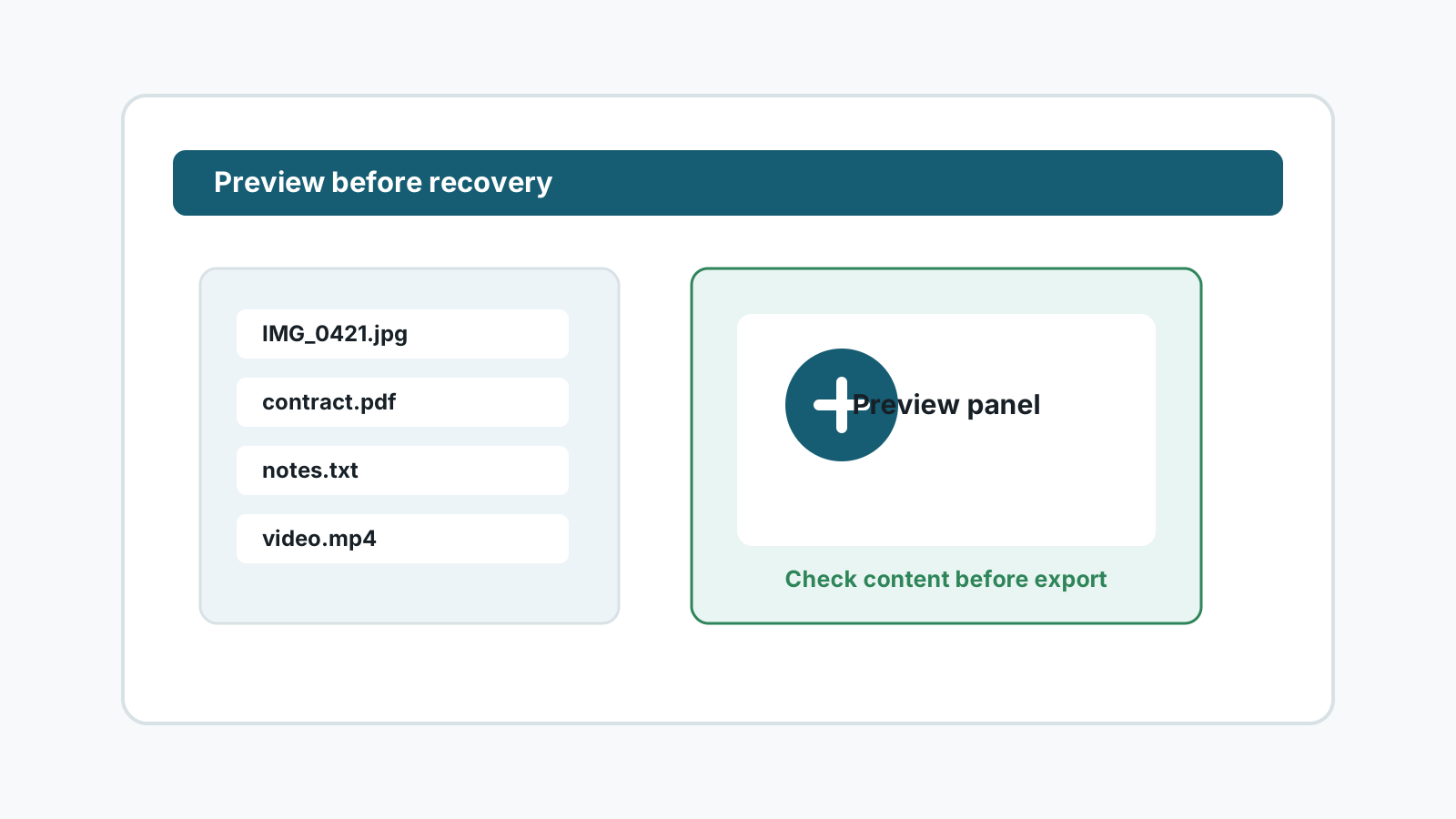
Why preview matters
A scan can find many candidate files. Some may be old, partial, duplicated, or renamed. Preview helps you choose the most useful files before writing recovery output.
A successful preview is a helpful sign, but it is not a 100% guarantee that every file will recover perfectly. Always open recovered files from the destination drive after export.
What to preview first
Photos
Check whether the image opens, whether it is complete, and whether it is the right version.
Documents and PDFs
Look for readable text, correct page count, and missing or corrupted sections.
Text and code files
Preview file contents when names are generic or folder structure is missing.
Videos and archives
Large fragmented files may require export and playback or integrity testing from the safe destination.
A safer preview workflow
1. Filter the result list
Narrow the scan results by file type, size, likely name, or date when metadata is available.
2. Preview high-value candidates
Open supported previews for the files that matter most before selecting a large export set.
3. Mark only useful files
Recovering fewer files reduces destination clutter and avoids unnecessary writes.
4. Export to another physical disk
Preview does not replace the safe destination rule. Never write recovered files back to the source drive.
Preview limits to understand
- Some file types cannot be previewed before export.
- A thumbnail may not prove the entire original file is intact.
- Deep scan results may not preserve original names or folders.
- Physically unstable drives should not be repeatedly previewed or scanned.
Using Recovery Studio FAQ
Does preview mean a file is fully recoverable?
It is a useful sign, but not an absolute guarantee. Export the file to another drive and open it there to verify.
Why are some files not previewable?
The file type may not be supported for preview, the file may be incomplete, or the scan may only have found partial data.
Should I recover files without preview?
Sometimes yes, especially for file types that need external validation, but recover them to another physical drive.
Can previewing damage the source drive?
Preview itself should not write recovered files to the source, but unstable or damaged drives should be handled by a specialist.