
How to Prevent Future Data Loss on Windows
The best recovery is the one you never need. After a data loss scare, set up a simple backup and verification routine so one deleted folder or failed drive does not become a crisis.
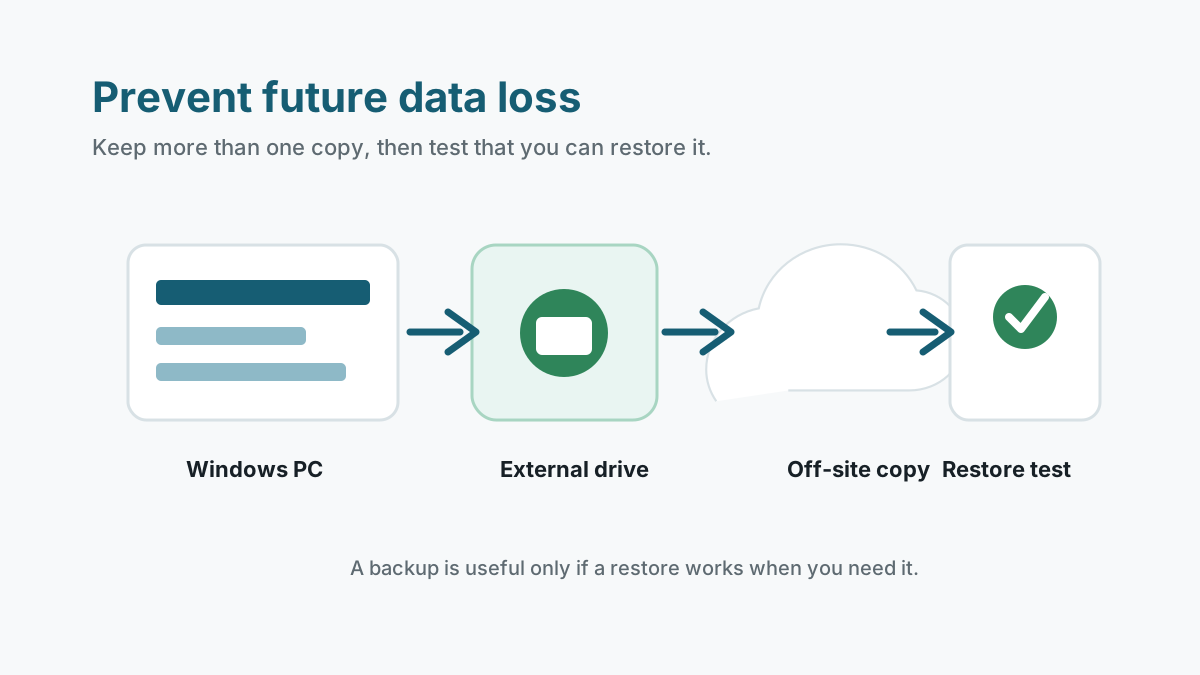
Use more than one backup location
A practical personal setup keeps the working copy on your PC, another copy on an external drive, and one off-site or cloud copy. The goal is to avoid a single point of failure.
For business-critical files, add periodic restore tests and consider an immutable or disconnected copy that ransomware cannot alter.
Windows tools that can help
File History
Use it for versioned copies of personal folders when an external or network location is available.
Previous Versions
Useful when restore points, backup snapshots, or file history are configured.
OneDrive
Cloud sync can provide recycle bin and version history, but it should not be your only backup.
External drive image
A periodic full backup helps with drive failure, Windows reinstall mistakes, and major cleanup errors.
Storage habits that prevent repeat loss
- Do not keep the only copy of important files on a USB drive or camera card.
- Eject removable drives cleanly before unplugging them.
- Avoid working directly from unstable external drives.
- Keep enough free space on system and work drives so apps do not fail during saves.
- Label backup drives and separate backup folders from recovery output folders.
Test recovery before you need it
1. Restore a sample file
Pick a small folder and confirm you can restore it to a safe test location.
2. Check version history
Open an older version of a document and confirm it contains the expected content.
3. Review backup dates
Make sure backups are recent enough for the files you care about.
4. Update the plan after changes
Add new work folders, photo libraries, or accounting files when your storage changes.
Safety and next steps FAQ
Is OneDrive enough to prevent data loss?
It helps with sync, recycle bin, and version history, but cloud sync alone is not a full backup strategy. Keep another copy too.
How often should I test backups?
For important personal files, test periodically after setup and after major changes. For business files, test on a regular schedule.
Should I keep using a drive after data loss?
Only after important files are recovered and backed up, and only if the drive shows no physical warning signs.