
How to Choose Data Recovery Software for Windows
Choosing data recovery software is less about the loudest claim and more about the workflow. A good Windows recovery tool should help you protect the source drive, understand limits, preview likely results, and export to another physical disk.
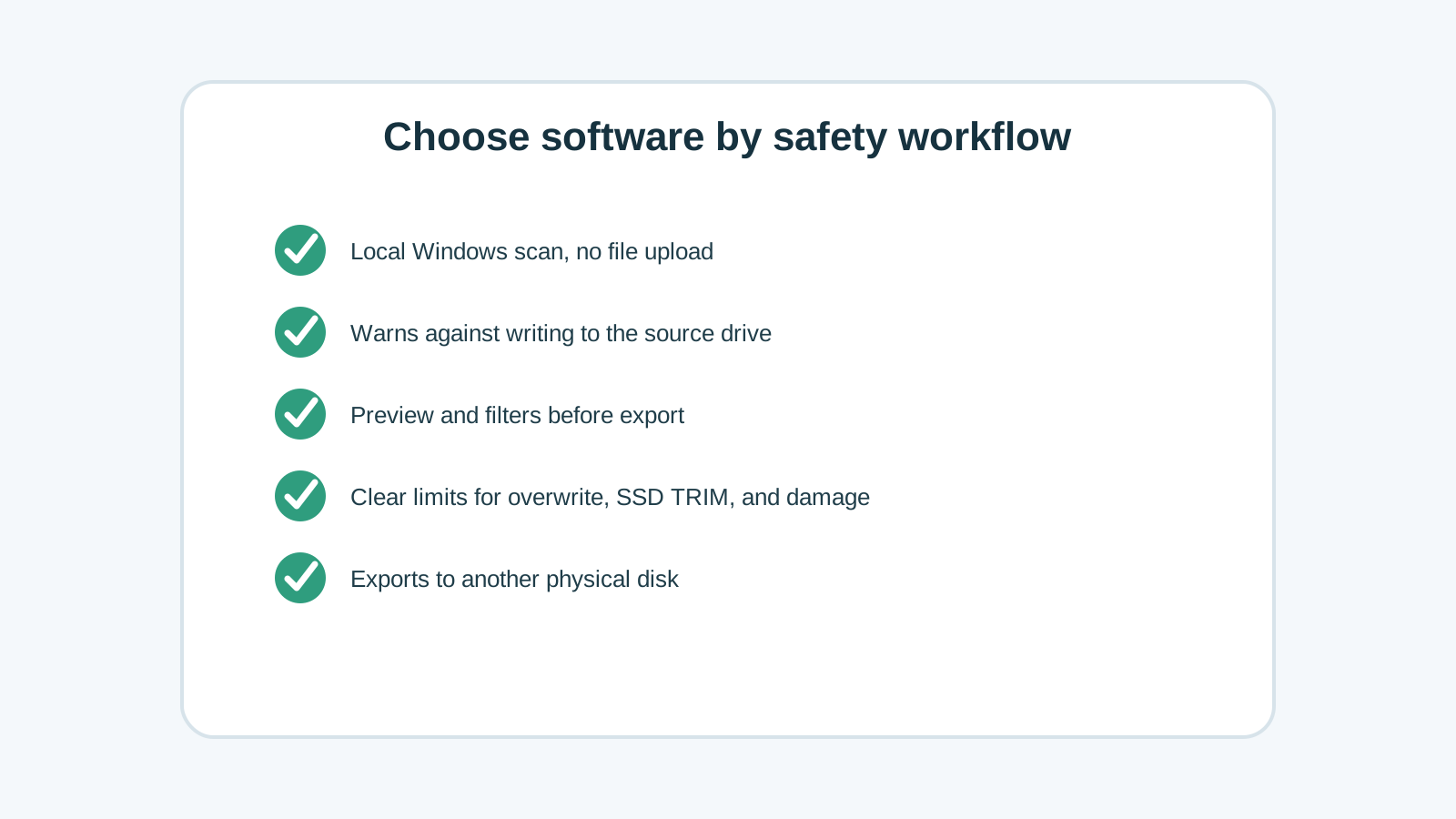
Core checklist
- Runs locally on Windows and does not require uploading private files.
- Warns against installing or saving output to the source drive.
- Supports previews for the file types you care about.
- Provides filters for file type, size, name, and preview availability.
- Explains limits around overwriting, SSD TRIM, missing names, and physical damage.
- Lets you choose a different physical disk as the recovery destination.
Match the tool to the case
Simple deletion
Check Recycle Bin and backups first, then use a scan if no clean copy exists.
Formatted removable drive
Look for deep scan support and clear warnings not to copy new files to the device.
SSD deletion
Expect TRIM limits and check backups before spending time on repeated scans.
Unstable hardware
Choose a professional provider instead of forcing software scans.
Trust signals that matter
Trustworthy recovery software should make unsafe choices harder, not easier. Clear destination warnings, source-drive language, preview before export, and conservative copy matter more than vague claims.
Be skeptical of pages that promise guaranteed recovery, original names in every case, or DIY fixes for physically damaged drives.
Before you buy or export
1. Verify the source drive
Make sure you are scanning the drive where the files were actually lost.
2. Preview representative files
Open supported photos, documents, or text results to confirm they are useful.
3. Confirm the destination
Use another physical disk with enough free space.
4. Save evidence
Keep notes about the loss scenario and what you already tried before running more tools.
Tool choice FAQ
What is the most important feature in recovery software?
Source-drive protection is the most important workflow feature because writing to the same drive can overwrite recoverable data.
Do I need preview before recovery?
Preview is useful because scans can find many irrelevant or damaged files. It helps you choose what is worth exporting.
Should I choose the tool with the highest advertised recovery rate?
No. Recovery rates depend on the case. Prefer tools that explain limits and help prevent unsafe actions.