
The Safest Windows Data Recovery Checklist
A checklist helps when data loss is stressful. Use this order to avoid common mistakes and keep expectations realistic before, during, and after a Windows recovery scan.
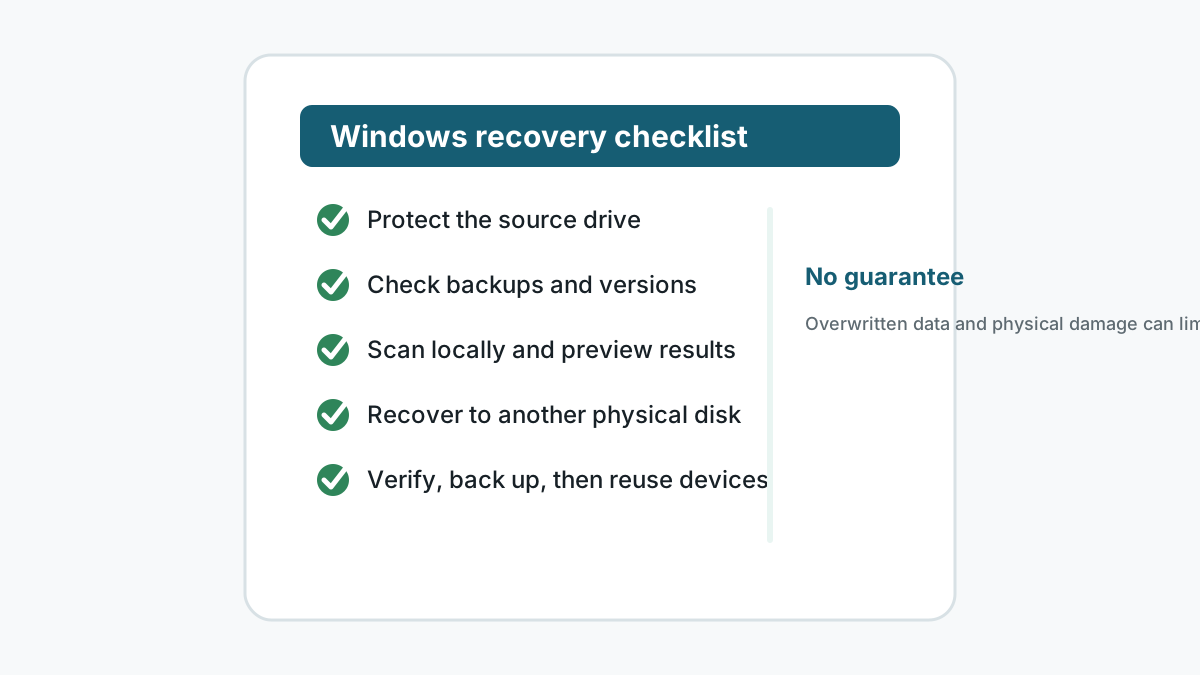
Immediate checklist
- Stop using the source drive.
- Do not install recovery software or save output to the affected drive.
- Prepare another physical disk for recovered files.
- Stop DIY work if the device shows physical damage symptoms.
Before scanning
Confirm the source
Identify the disk, partition, USB drive, external drive, or memory card where the files were lost.
Check backups
Review Recycle Bin, File History, Previous Versions, OneDrive, app autosaves, and other copies.
Choose the destination
Use a different physical disk with enough free space for the first recovery pass.
Set expectations
Deep scans may find file content without original names or folders, and recovery is never guaranteed.
During the scan
1. Start with visible results
If a faster scan finds useful names and folders, review those before running deeper scans.
2. Use filters
Narrow results by file type, size, and preview availability.
3. Preview samples
Open supported photos, documents, PDFs, or text files before choosing a large export.
4. Avoid repeated scans on unstable hardware
If the drive disconnects or becomes noisy, stop and seek specialist help.
After export
- Open the most important recovered files from the destination disk.
- Keep the source drive untouched until you know what was recovered.
- Copy verified files into your normal folders only after the recovery pass is complete.
- Create at least one new backup before reusing or formatting the original device.
Safety and next steps FAQ
What is the first item on a data recovery checklist?
Stop using the source drive. That reduces the chance of overwriting recoverable data.
Should I try built-in Windows recovery before software?
Yes. Recycle Bin, File History, Previous Versions, and cloud version history may restore files with less risk.
When is the checklist not enough?
Physical damage, critical business data, or repeated disconnects should be handled by a professional.