
SD Card Photo Recovery for Windows: A Safer Camera Card Workflow
If photos disappeared from an SD card, the safest first move is to stop using the card. Deleted or formatted photos may still exist until new camera shots, downloads, or repair attempts overwrite the card.
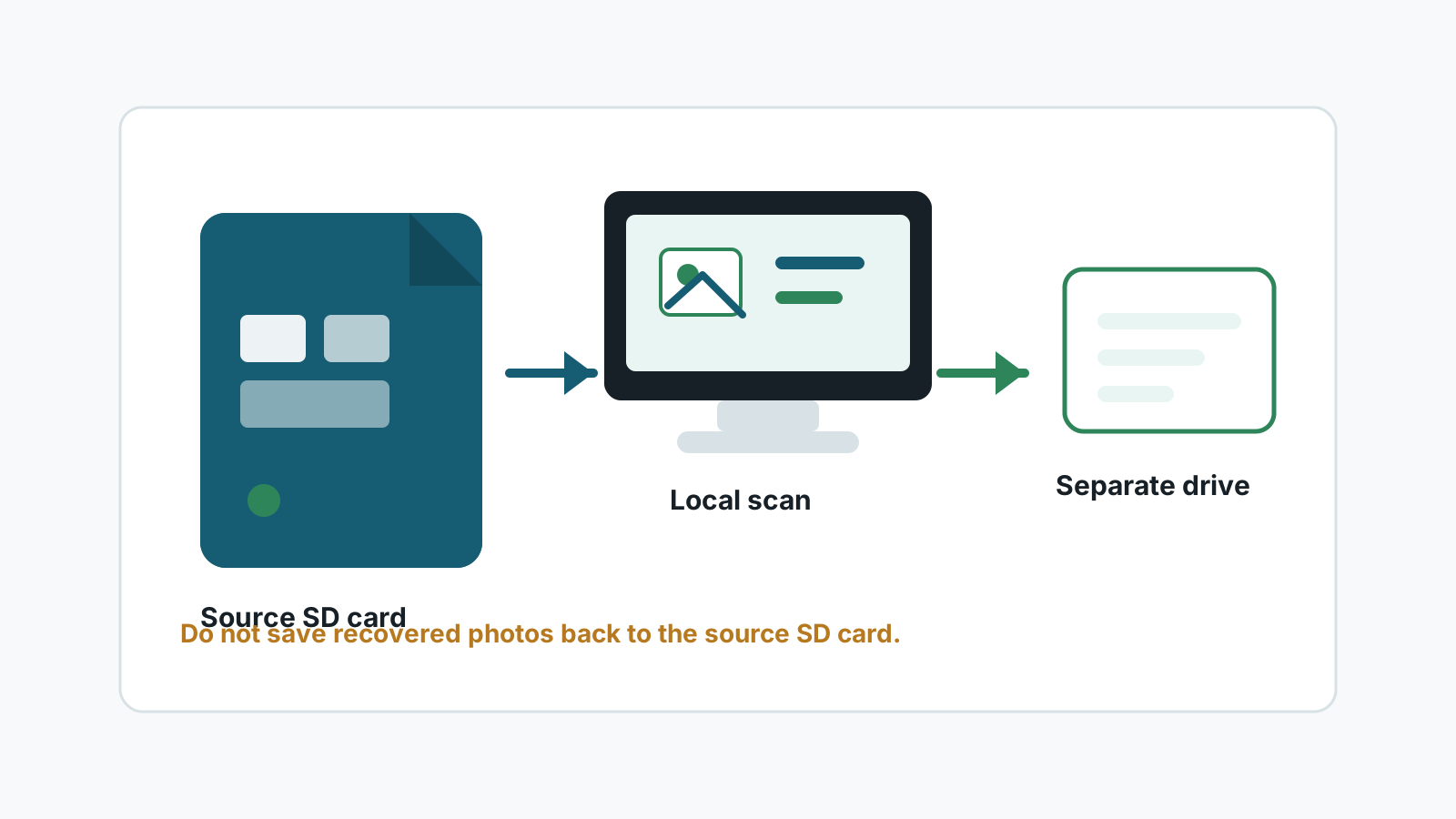
What to do before trying SD card photo recovery
- Remove the card from the camera or device as soon as you notice missing photos.
- Lock the full-size SD adapter if it has a write-protect switch.
- Use a stable card reader connected to a Windows PC; avoid repeatedly reconnecting a flaky card.
- Prepare another physical drive with enough free space for recovered photos.
Can deleted SD card photos be recovered?
Often, yes, but not always. Deleting photos or quick-formatting a card usually changes file system records first; the photo data may remain until the card is reused.
Recovery chances drop quickly after new shooting, camera formatting, file repair commands, or unstable reads. A deep scan may also recover photos with generated names instead of original camera filenames.
A safer Windows workflow
1. Connect the card as read-only when possible
Use the adapter lock if available and avoid opening apps that may write thumbnails or metadata to the card.
2. Scan the SD card locally
Select the SD card or card-reader volume in Recovery Studio and scan for common photo formats such as JPG, PNG, TIFF, HEIC, and camera RAW files where supported.
3. Preview before exporting
Preview sample photos so you can prioritize the images that open correctly instead of relying only on file names.
4. Recover to another physical disk
Save recovered photos to a computer drive or external disk, never back to the same SD card.
Common mistakes that lower recovery chances
- Taking more photos or videos on the same card after deletion.
- Formatting the card again because Windows or the camera asks for it.
- Running repair tools before copying or scanning important data.
- Saving recovered images back to the SD card during the same session.
Realistic limits for camera cards
Fragmented media, damaged card controllers, overwritten blocks, and unsupported camera RAW formats can limit results. If the card is physically damaged or repeatedly disconnects, software scans can make the situation worse.
FAQ
Can Recovery Studio recover every SD card photo?
No. Results depend on overwrite, card health, file format, and whether the card can be read reliably.
Should I format the SD card before recovery?
No. If the photos matter, scan or image the card before formatting or repair.
Will original camera filenames be preserved?
Sometimes, but deep scan results may use generated names if the file system metadata is missing.
Where should recovered photos go?
Use another physical drive, such as your Windows PC drive or an external disk, not the source SD card.