
SD Card Not Recognized? How to Recover Files Safely
An SD card that is not recognized can mean a reader problem, a drive-letter issue, file system damage, or physical card failure. The safest path is to separate connection checks from write-heavy repair attempts.
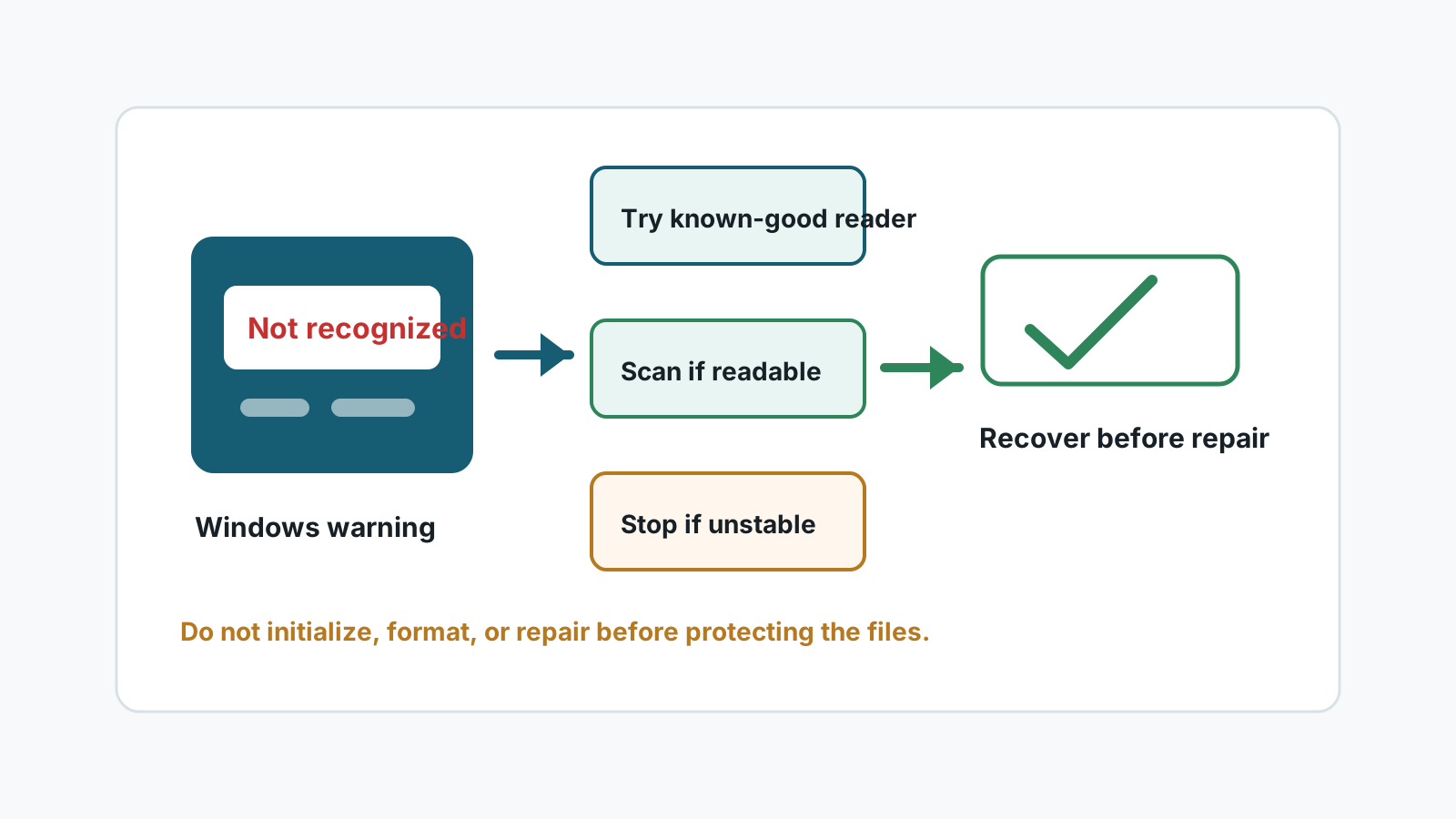
What not recognized can mean
Reader or adapter issue
The card may be fine, but the reader, adapter, USB port, or cable may be unreliable.
Drive-letter problem
Windows may see the device but not assign a visible drive letter.
File system damage
The card may appear as RAW, ask to format, or show a size that does not look right.
Physical failure
Cracks, heat, liquid exposure, or repeated disconnects are warning signs for specialist recovery.
Safe checks before recovery
- Try a different card reader or USB port without writing files to the card.
- Check Disk Management only to see whether the card appears; do not initialize or format it.
- If the card appears intermittently, stop repeated retries and consider professional help.
- If Windows asks to format, cancel while the files still matter.
When recovery software can help
If Windows can read the card enough to expose a volume or physical device, Recovery Studio may be able to scan it locally and list recoverable files.
If the card never appears through any reader, or appears with the wrong capacity, software may not be enough. Continued attempts can stress failing hardware.
A cautious workflow
1. Stabilize the connection
Use a known-good reader and avoid moving the card during scanning.
2. Cancel format prompts
Formatting is for reuse, not recovery. Recover or image first.
3. Scan only if the card is readable
Select the card in Recovery Studio when Windows exposes it reliably enough to scan.
4. Export to another drive
Save recovered files to a separate physical disk and verify them there.
When to stop and use a specialist
- The card is cracked, bent, burnt, wet, or unusually hot.
- Windows shows the wrong capacity or the card disconnects repeatedly.
- The data is business-critical, legal, or irreplaceable.
- Multiple readers cannot detect the card at all.
FAQ
Should I run CHKDSK on an unrecognized SD card?
Not as the first recovery step. Repair tools can write changes. Recover or image important data first.
Can software recover a card that never appears?
Usually no. Software needs the card to be readable enough for Windows or the recovery engine to access it.
Is trying another card reader safe?
Yes, if you only test detection and do not format, initialize, or copy new files to the card.
What if Windows says the card needs formatting?
Cancel the prompt. Scan or image the card before formatting if the files still matter.