
How to Recover Deleted Files on Windows 11 Safely
If files were deleted on Windows 11, the safest first step is to reduce new writes to the drive where they were stored. Built-in restore paths may solve the problem without a scan, but if they do not, a local recovery workflow can help you look for remaining file content.
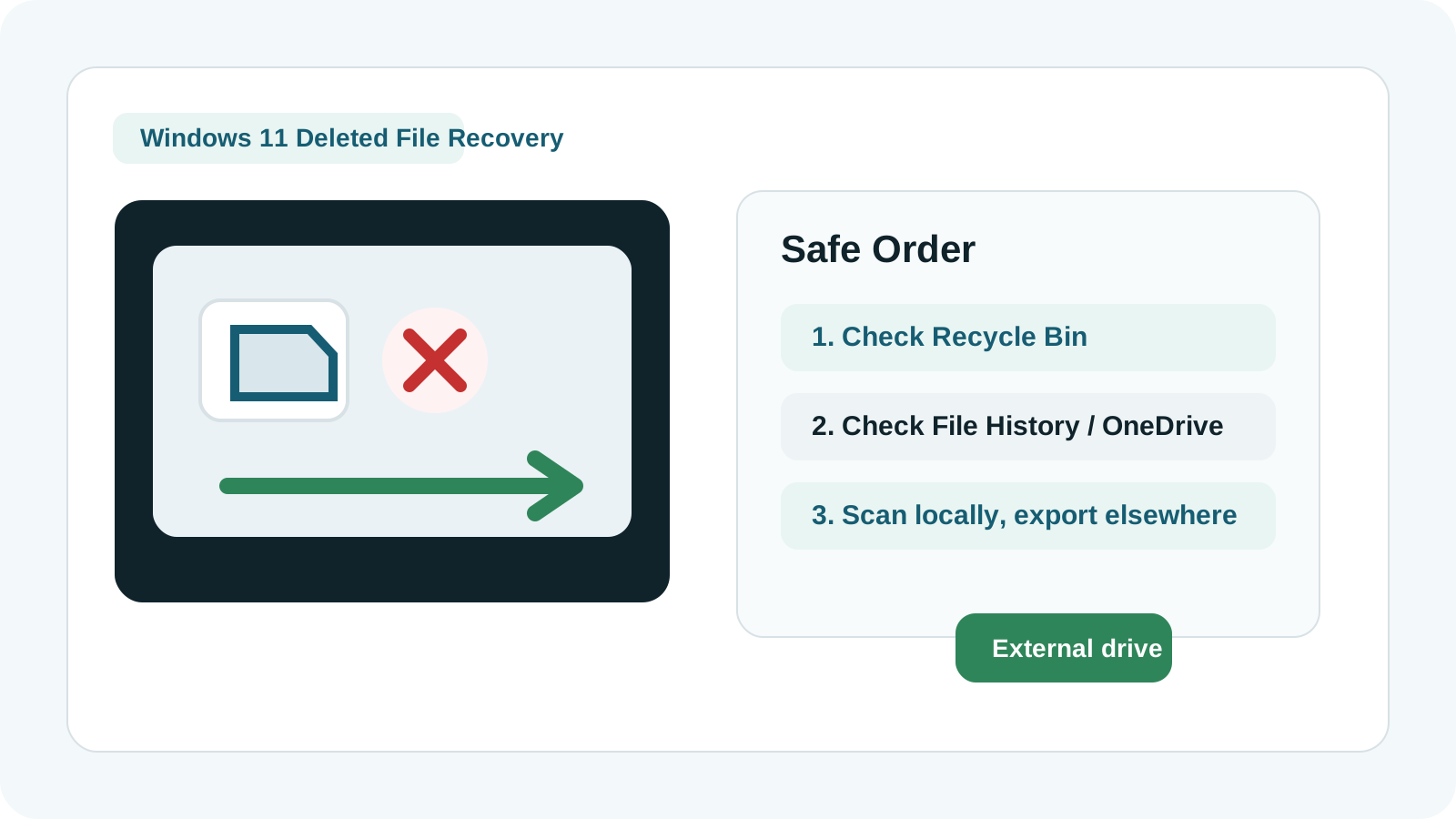
What to do first on Windows 11
- Stop using the affected drive or partition as much as possible.
- If the files were on the system drive, avoid downloads, installs, and large app updates.
- Prepare a different physical drive before exporting recovered files.
- Keep the device powered off if it shows physical damage symptoms.
Check Windows 11 restore options before recovery software
Recycle Bin
If the files are still there, restore them first. This is the least risky path and usually preserves names and folders.
File History
If File History was enabled, browse the backed-up folder and restore the version you need.
OneDrive and app history
Desktop, Documents, and Pictures may be synced. Check cloud recycle bins, version history, and app autosaves.
Previous Versions
Right-click the parent folder and check whether Windows exposes a restorable previous version.
How to scan with Recovery Studio
1. Run from a safe location
Install and run the tool from another drive when possible, especially when files were lost from the system disk.
2. Select the original source
Choose the disk, partition, USB drive, or external drive where the files were originally stored.
3. Review and preview
Use type filters and previews to identify the files that matter before exporting a large batch.
4. Recover elsewhere
Save results to another physical disk so the recovery output does not overwrite other deleted data.
What can limit Windows 11 recovery
- New data has overwritten the old file content.
- SSD TRIM has already made deleted blocks unavailable.
- Deep scan can find file content but may lose original names or folder structure.
- Physical damage can make repeated scans unsafe.
FAQ
Can Windows 11 deleted files always be recovered?
No. Recovery depends on overwrite, drive health, filesystem metadata, SSD behavior, and whether the content is still readable.
Should I use File History before scanning?
Yes. If File History or another backup contains the file, restoring from backup is usually safer and more predictable than scanning.
Can I recover to the same drive?
No. Export recovered files to another physical drive to reduce overwrite risk.
When should I avoid software recovery?
Avoid DIY scans when a drive clicks, disconnects repeatedly, smells burnt, or has impact or water damage.