
How to Recover Deleted Audio Files on Windows
Deleted audio files may still be recoverable while their storage space has not been reused. The safest workflow is to stop using the source device, check easier restore paths, scan locally, and listen to recovered files from a separate destination.
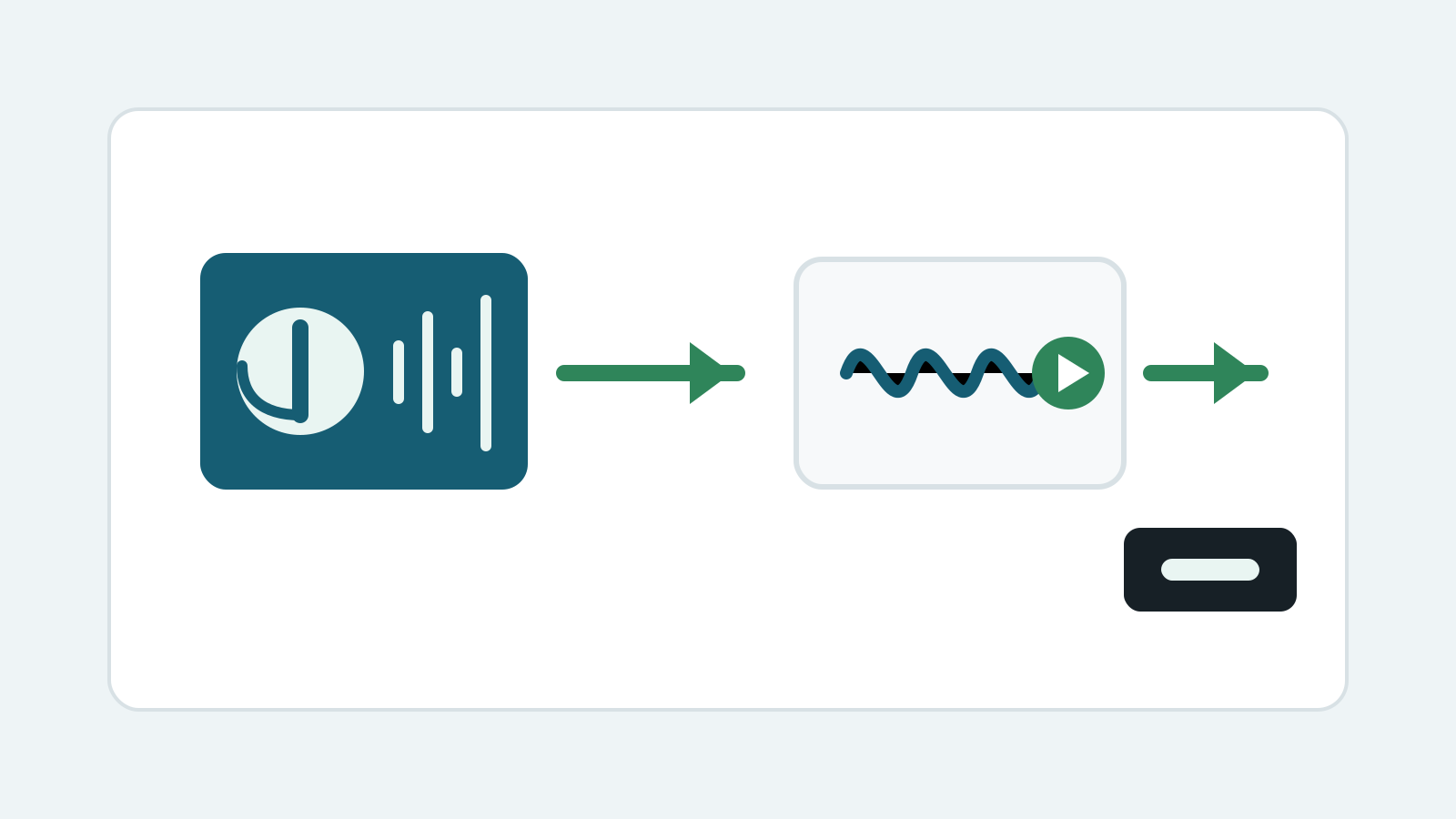
What to do first after audio files are deleted
- Stop recording, exporting, downloading, or editing audio on the source drive.
- Check Recycle Bin, DAW project folders, cloud storage, media libraries, and backups.
- Prepare another physical drive for recovered audio and test exports.
- Do not save new mixes, caches, or samples to the affected drive before recovery.
Audio formats to look for
Common music files
MP3, M4A, AAC, FLAC, and OGG may appear in music folders, downloads, and media libraries.
Recording files
WAV, AIFF, and project audio exports are often larger and can be affected by overwrite or fragmentation.
Project assets
DAW sessions may reference many separate audio files. Recover the project file and linked media together when possible.
A safer workflow for deleted audio files
1. Select the original location
Choose the disk, USB drive, external drive, SD card, or memory card where the audio files were stored.
2. Scan and filter audio results
Filter by MP3, WAV, M4A, FLAC, AAC, and other relevant audio formats.
3. Recover to another physical disk
Export selected audio files to a separate destination before opening or editing them.
4. Listen and verify
Play recovered files from the destination and check for silence, glitches, missing endings, or incorrect duration.
Audio recovery limits
- No software can guarantee every audio file will recover or play cleanly.
- Large WAV or recording files may be fragmented or partially overwritten.
- Deep scans may lose original filenames and folder paths.
- Physically unstable drives or cards should be handled by a specialist.
Audio recovery FAQ
Can deleted MP3 or WAV files be recovered?
Sometimes, if the file content has not been overwritten and the source device is stable enough to scan.
Why does recovered audio have glitches or silence?
The file may be incomplete, partially overwritten, or missing chunks needed for clean playback.
Will recovered audio keep original names?
Sometimes, but deep scan results may use generated filenames if filesystem metadata is gone.
Where should recovered audio files be saved?
Save them to another physical disk, not the source device being scanned.