
Recover Deleted Documents on Windows With a Safer Local Workflow
Deleted documents may still be recoverable when their storage space has not been reused. The safest workflow is to pause writes, check built-in restore options, scan locally only when needed, preview important files, and recover them to a separate physical drive.
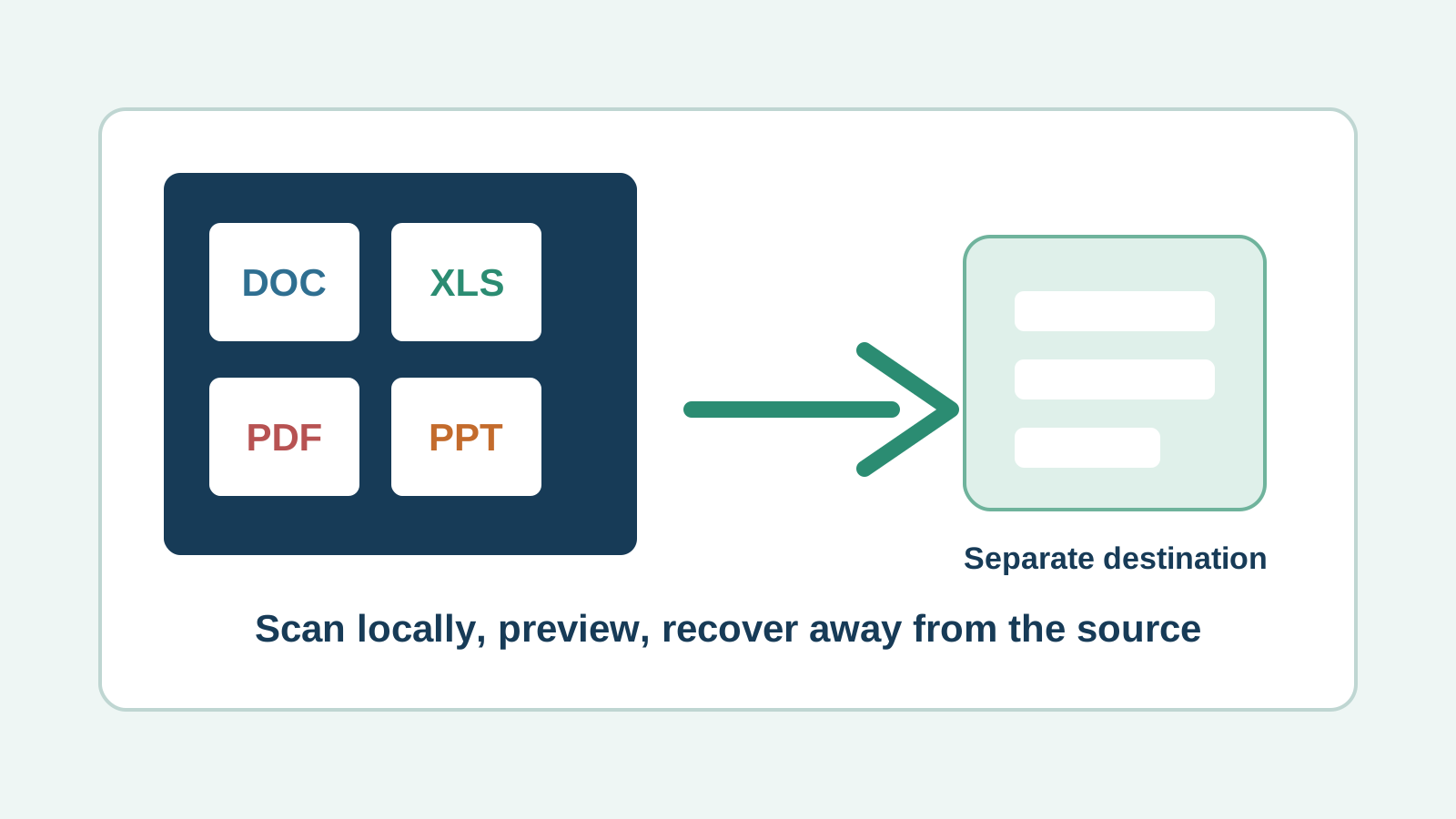
What to do first after documents are deleted
- Stop saving, downloading, editing, or installing software on the source drive.
- If the documents were on C:, reduce normal computer use because Windows creates background writes.
- Prepare another physical disk before you scan so recovery output does not go back to the source.
- Do not run repair, cleanup, or format commands before checking whether a copy can be restored safely.
Check document restore paths before scanning
Recycle Bin
If the files are still there, restore them directly. This normally preserves names, folders, and timestamps.
Office and app recovery
Word, Excel, and PowerPoint may have AutoRecover, temporary files, recent files, or unsaved document recovery.
Cloud and backup copies
Check OneDrive recycle bin, version history, File History, Previous Versions, email attachments, and shared folders.
Local scan
If no copy exists, scan the affected drive locally and preview supported files before exporting selected results.
A safer Recovery Studio workflow for documents
1. Select the original location
Choose the drive, partition, USB drive, external drive, SD card, or memory card where the documents were stored.
2. Scan for document types
Look for DOCX, XLSX, PPTX, PDF, TXT, RTF, CSV, and other common office formats.
3. Use search, filters, and preview
Prioritize files by type, size, name when available, and whether the preview opens enough to identify the content.
4. Recover to another physical disk
Saving recovered documents back to the source can overwrite other document fragments that have not been recovered.
Realistic document recovery limits
- No software can promise 100% document recovery.
- Overwritten documents and SSD TRIM-affected data may not be recoverable.
- Deep scans may recover document content without the original filename or folder path.
- Some Office, PDF, or archive-based files may appear but fail to open if key parts are missing.
- Physically damaged drives should be handled by a professional recovery provider.
Document recovery FAQ
Can deleted documents always be recovered on Windows?
No. Results depend on overwrite, device health, filesystem metadata, file fragmentation, and whether a backup or cloud copy exists.
Should I scan before checking OneDrive or File History?
No. A clean restore from OneDrive, File History, Previous Versions, or Office AutoRecover is usually safer and preserves names better than a scan.
Will recovered documents keep the original folder structure?
Sometimes, but not always. Deep scan results may use generated names when filesystem metadata is gone.
Where should recovered documents be saved?
Save them to another physical disk, not the disk, USB drive, or external drive being scanned.