
How to Recover Deleted Work Files on Windows Safely
When work files disappear, the safest response is not to keep working in the same folder. New edits, sync activity, downloads, and temporary files can reuse storage space that still contains deleted data.
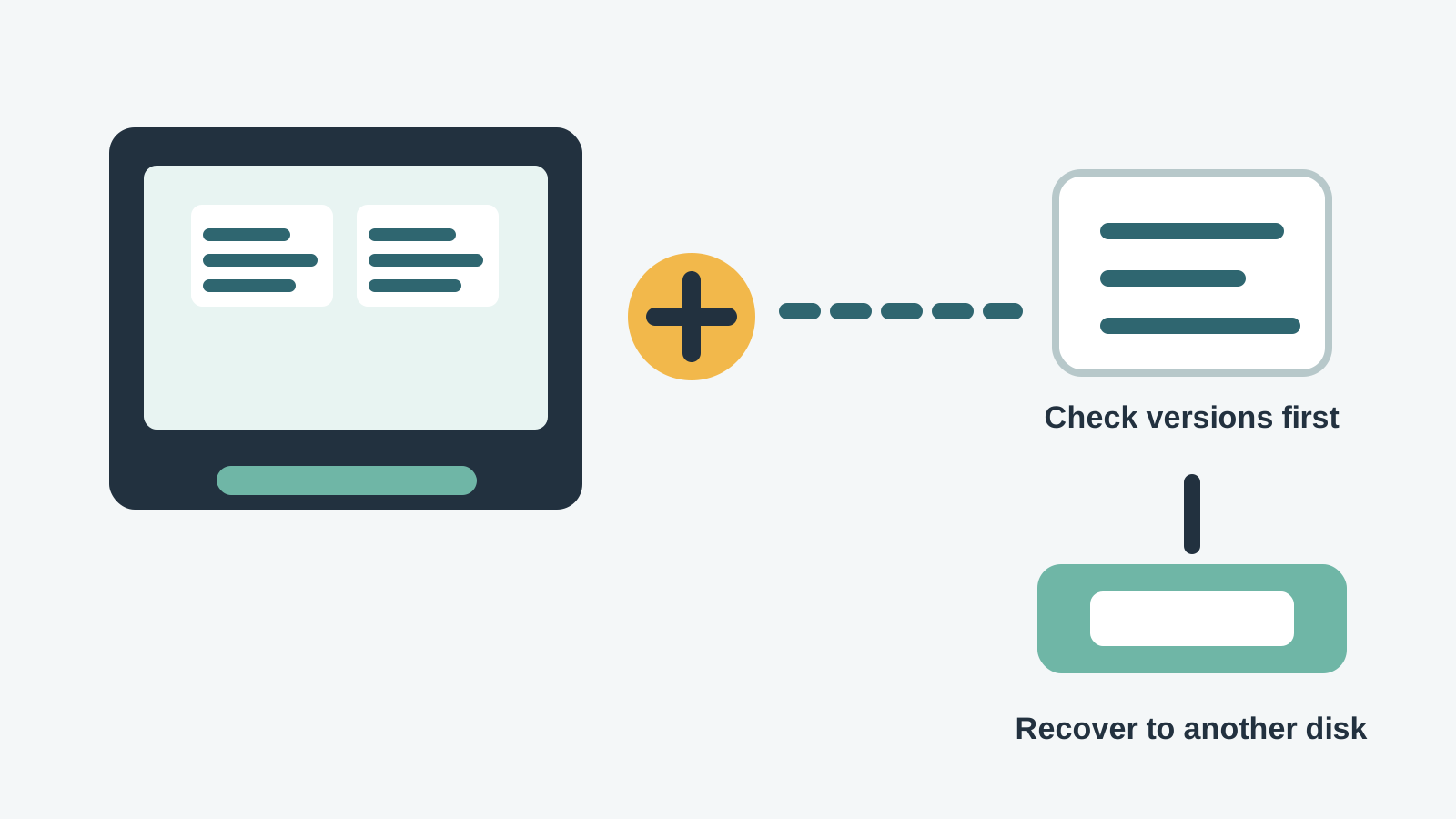
What to do first
- Stop editing, syncing, downloading, or moving files on the source drive.
- Record where the missing files were stored and when they disappeared.
- Prepare a different physical disk before you scan or recover anything.
- If the drive is unstable or physically damaged, stop and use a professional service.
Check safer restore sources before scanning
- Check the Recycle Bin unless the files were Shift Deleted or removed from removable media.
- Check File History and Previous Versions for the folder that held the files.
- Check OneDrive, SharePoint, Google Drive, Dropbox, email attachments, and collaboration tools for deleted items or version history.
- Check app-specific autosave, recovery, recent files, and temporary folders before scanning.
When a local Windows scan makes sense
A local scan makes sense when the work files are not available from backups, cloud history, or app recovery, and the source drive is healthy enough to scan.
Recovery Studio scans locally on the Windows PC. Your files are not uploaded for recovery, and recovered output should be written to another physical disk.
1. Select the original source
Choose the disk, partition, USB drive, external drive, or folder location where the files were stored.
2. Scan and filter by file type
Use document, archive, spreadsheet, presentation, PDF, image, and project-file filters to reduce noise.
3. Preview or validate candidates
Open supported previews where possible, then validate recovered files from the safe destination.
4. Recover to another physical disk
Do not save recovered work files back to the source drive because the output can overwrite other recoverable data.
Limits to understand
- No software can guarantee 100% work file recovery.
- Deep scans may find file content without original folder names or paths.
- Overwritten documents, spreadsheets, presentations, and archives may open with missing or damaged content.
- Business-critical or legally sensitive files may justify specialist handling before repeated DIY attempts.
Work file recovery FAQ
Can deleted work files always be recovered?
No. Recovery depends on overwrite, storage type, filesystem metadata, file condition, and whether a safer backup or version still exists.
Should I keep working while a file is missing?
Avoid it on the source drive. Ongoing edits, downloads, syncing, and browser cache activity can reduce recovery chances.
Will recovered files keep their original folders?
Sometimes, but not always. If metadata is missing, deep scan results may use generated names and lose folder structure.
Where should I save recovered work files?
Use another physical disk, then open and verify the files before copying anything back.