
How to Recover a Deleted Folder on Windows
A deleted folder is not just one file. It may contain many files, subfolders, and metadata that connects names and paths together. That is why folder recovery should start with restore paths that preserve structure before moving to a scan.
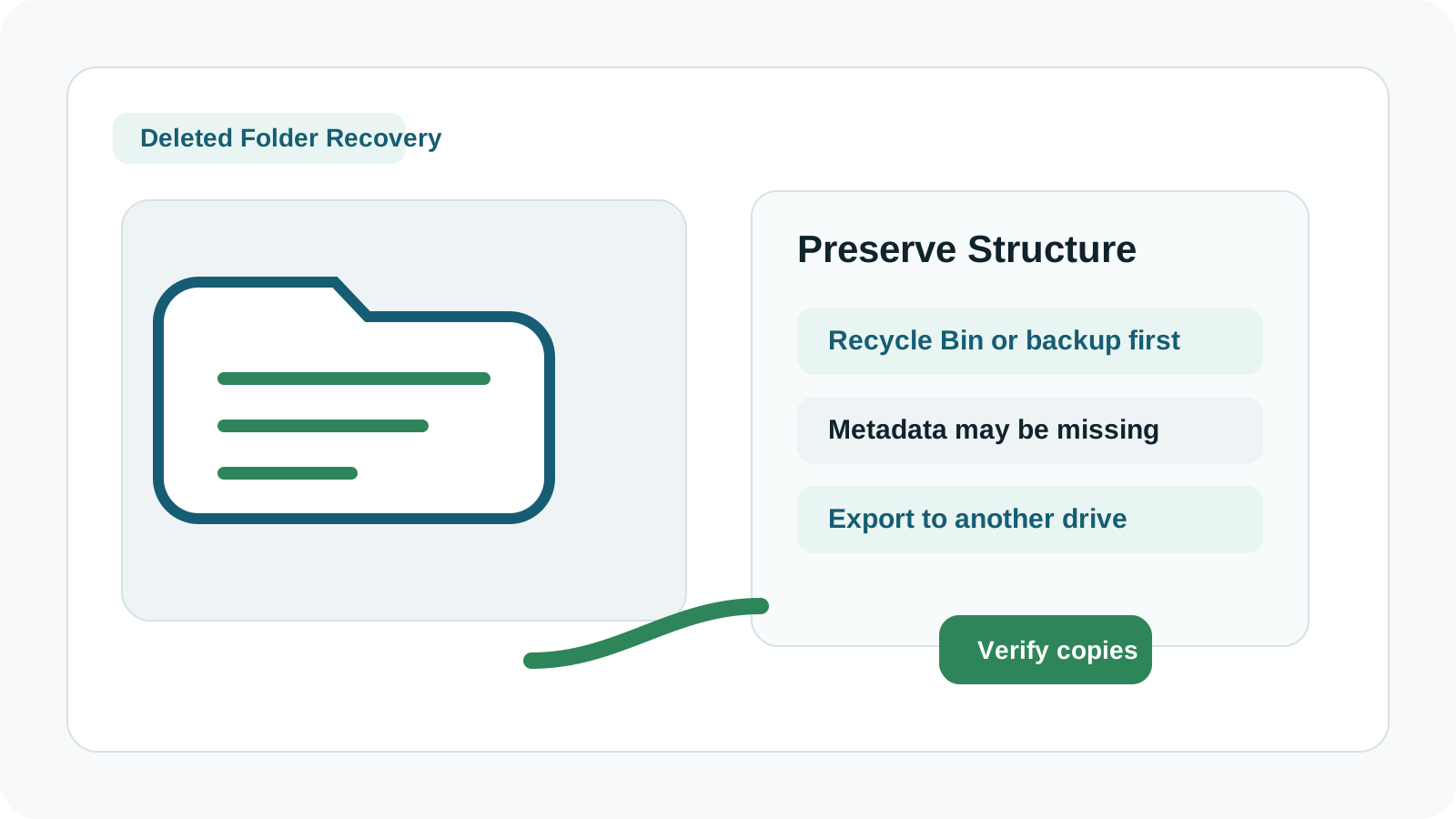
Try structure-preserving restore paths first
Recycle Bin
If the folder is still in the bin, restoring it may bring back the folder and its contents together.
File History
A backed-up folder can often be restored with its original layout intact.
Previous Versions
Checking the parent folder may reveal a snapshot from before the deletion.
Cloud sync
OneDrive or SharePoint may provide deleted folder restore or version history paths.
Why deleted folders can be harder than single files
The folder name, child file names, and original paths are filesystem metadata. If that metadata is damaged or overwritten, recovery software may still find file content but not the exact tree.
That is why backup and cloud restore options should be checked first when folder organization matters.
How to scan for files from a deleted folder
1. Stop writing to the source drive
Folder recovery can require both file content and metadata, so preserve the affected disk as much as possible.
2. Scan the original parent location
Choose the disk or partition where the folder lived before deletion.
3. Search by known names and file types
Use remembered folder names, extensions, dates, and preview status to group likely matches.
4. Recover to another drive and reorganize
Export to a separate physical disk, then verify and rebuild folder organization if needed.
Folder recovery mistakes to avoid
- Recovering the folder back to the original drive.
- Assuming all nested files are recoverable because the folder name appears.
- Ignoring OneDrive or File History when the folder may have been synced or backed up.
- Continuing scans on a physically failing drive.
FAQ
Can a deleted folder be restored with all subfolders?
Sometimes, especially through Recycle Bin, File History, or a snapshot. Deep scans may not preserve the full tree.
Why did recovered folder files lose their names?
Names and paths are metadata. If that metadata is gone, a scan may recover content with generated names.
Should I recover the folder to its original location?
No. Export to another physical drive first, then copy back only after you verify the recovered files.
What if the folder was on an external drive?
Stop using that drive, connect it only for scanning, and recover output to a different disk.