
Why Local Data Recovery Matters for Private Files
Private files may include work documents, client records, finance exports, IDs, photos, or archives. Local recovery keeps the scan on your Windows PC, but it still needs a careful workflow to avoid overwrite and physical-drive risk.
What to do first
- Stop editing, syncing, downloading, or moving files on the source drive.
- Record where the missing files were stored and when they disappeared.
- Prepare a different physical disk before you scan or recover anything.
- If the drive is unstable or physically damaged, stop and use a professional service.
Check safer restore sources before scanning
- Use approved backups, cloud recycle bins, version history, and File History first when they are available.
- Confirm whether privacy rules allow cloud restore, external IT handling, or specialist recovery before sharing files.
- Keep recovered copies on a controlled destination disk, not the original source drive.
- Avoid tools or services that require uploading sensitive files when a local workflow is enough.
When a local Windows scan makes sense
Local scanning is useful when private files are missing from safer restore sources and you need to attempt recovery without uploading file contents to an online service.
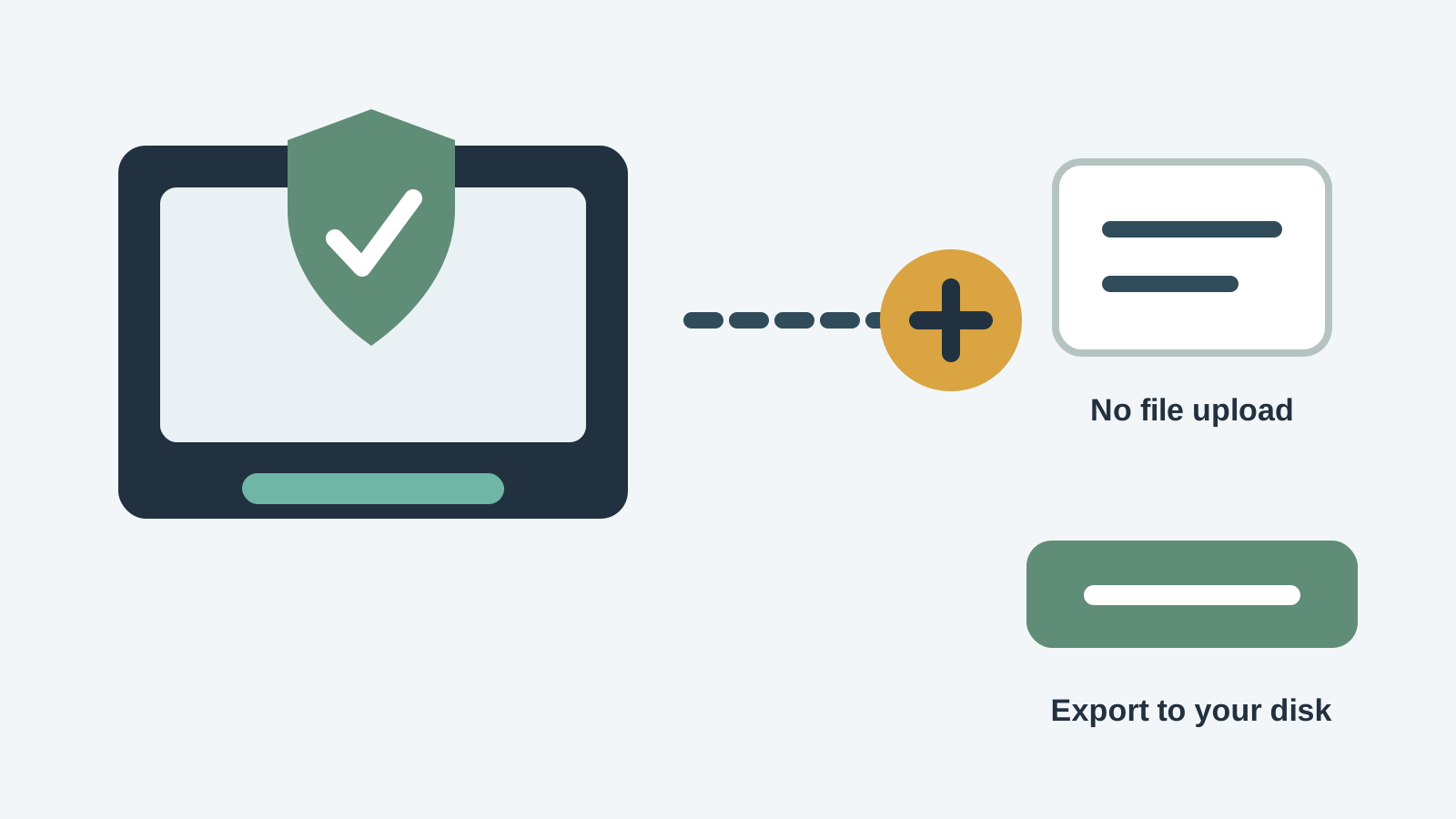
Recovery Studio scans locally on the Windows PC. Your files are not uploaded for recovery, and recovered output should be written to another physical disk.
1. Select the original source
Choose the disk, partition, USB drive, external drive, or folder location where the files were stored.
2. Scan and filter by file type
Use document, archive, spreadsheet, presentation, PDF, image, and project-file filters to reduce noise.
3. Preview or validate candidates
Open supported previews where possible, then validate recovered files from the safe destination.
4. Recover to another physical disk
Do not save recovered work files back to the source drive because the output can overwrite other recoverable data.
Limits to understand
- Local recovery does not remove the need for backups, encryption, access control, or compliance review.
- It cannot guarantee recovery of overwritten, TRIM-discarded, physically damaged, or fragmented files.
- Deep scans may expose many unrelated deleted files, so handle results carefully.
- If the device is failing, powering it repeatedly can create more risk than a professional recovery intake.
Work file recovery FAQ
Does local recovery upload my files?
Recovery Studio is designed for local Windows scanning and recovery. Your files should not be uploaded as part of the recovery workflow.
Is local recovery always safer than cloud recovery?
Not always. If a trusted cloud recycle bin or version history already has the file, that restore path may be safer than scanning a source drive.
Can local recovery protect confidentiality?
It can reduce unnecessary file uploads, but you still need proper access control, destination handling, and policy compliance.
Where should private recovered files be saved?
Save them to another physical disk that you control, then verify files before moving them into the normal storage location.